

Bulk Add Word

Bulk Add Words allows you to apply actions to multiple words at once. This feature is especially useful for advanced learners who already have a solid vocabulary before starting with Langoid. With Bulk Add Words, you can mark words as Known, indicating that you are already familiar with them and require minimal review.
Even if you are a beginner but already recognize some words that still need occasional review, you can easily add them to your vocabulary in bulk using this feature. This saves time and helps you organize your learning efficiently.
 [mobile]
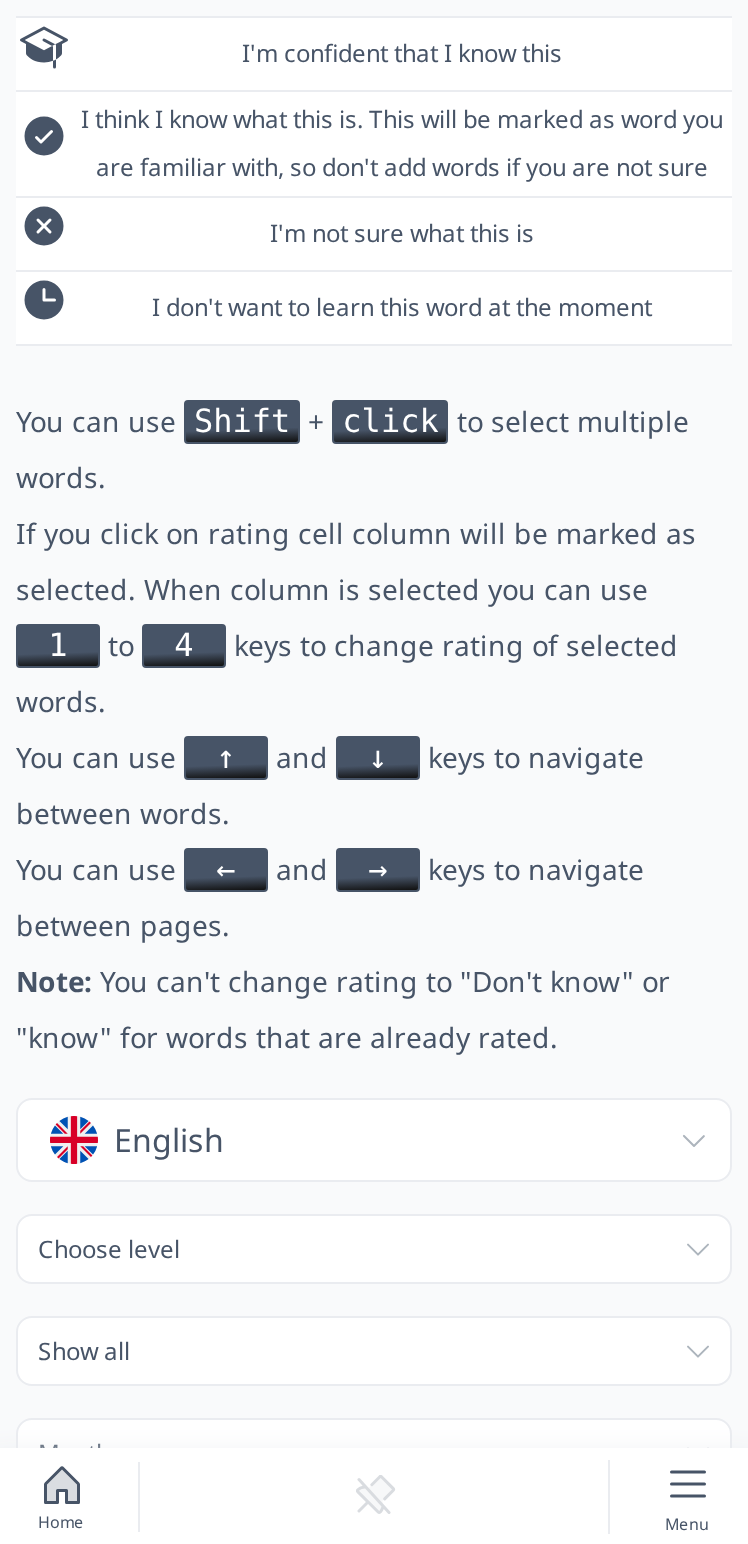
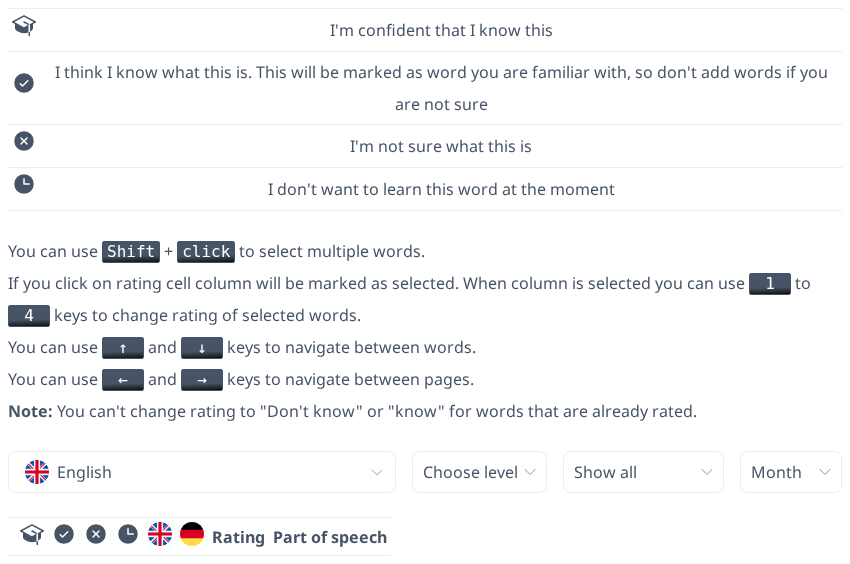
Click Show help above the list to see what each icon means and which keyboard shortcuts you can use (for example Shift + click to select several words, and keys 1 to 4 to rate the selected words). The Add sentences link in the upper right corner opens Bulk add sentence.
In the Bulk Add Words feature, you have several options for categorizing words based on your familiarity with them:
- Perfect – Select this option if you already know the words perfectly and rarely need to review them. These words are fully committed to your memory.
- Familiar/Known – Choose this if you know the words fairly well and don’t need frequent reviews, but still want to refresh them occasionally.
- Don’t Know – Use this option for words you want to learn. You may recognize them to some extent, but you still need significant practice to become familiar with them.
- Buried – If you want to learn certain words but prefer to focus on other vocabulary first, you can mark them as Buried. This helps you avoid feeling overwhelmed by too many words at once.
By default, buried words remain hidden for one month, but you can adjust the duration manually using the "Hide for" dropdown menu. The available options are one day, one week, one month, or forever. If you choose forever, the words will no longer appear in word tests.
 [mobile]
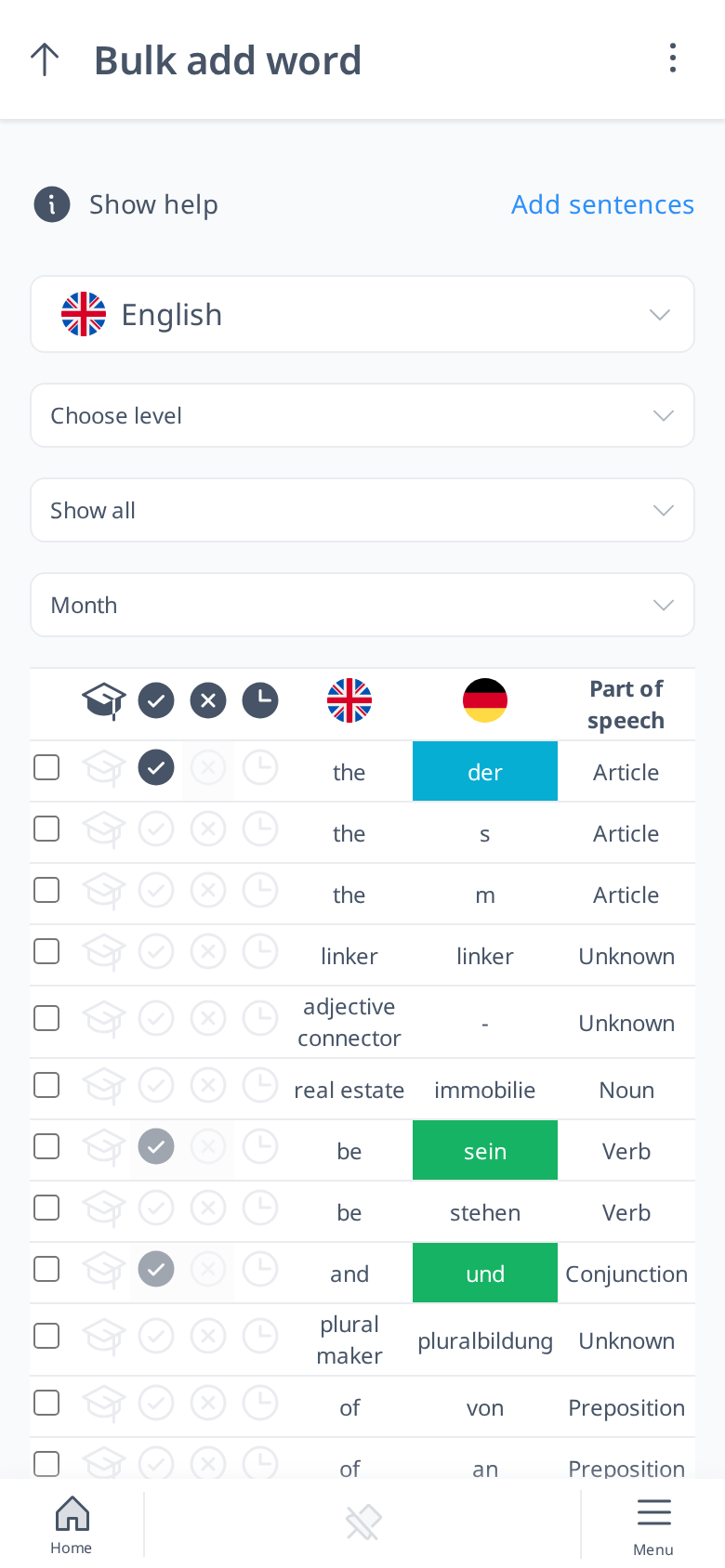
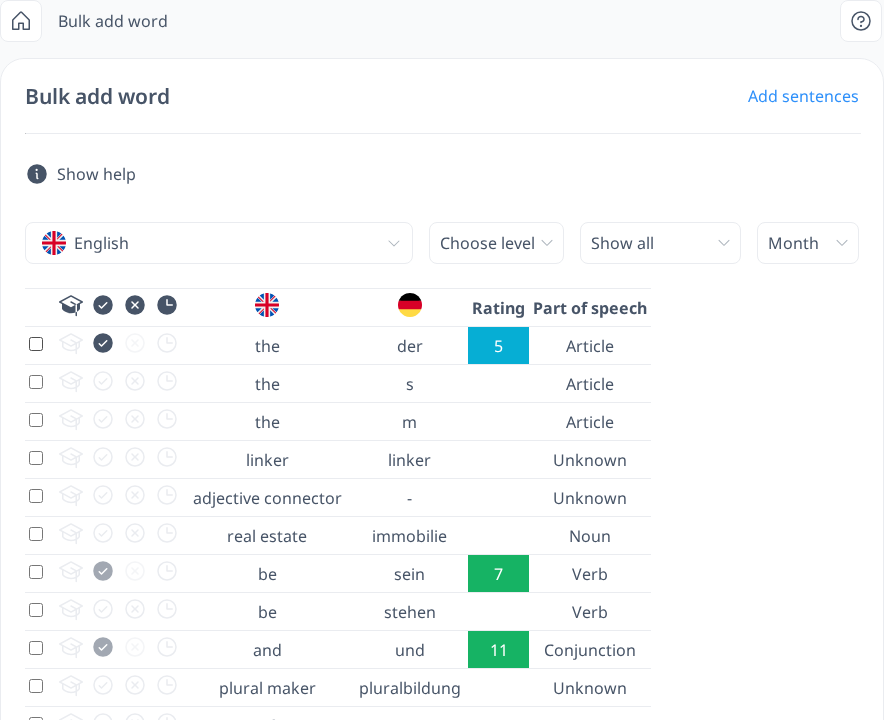
Viewing and Managing Words
On this page, in addition to the words in the language you are learning, you can also see their translations in your interface or native language, along with their part of speech.
If you are unsure whether a word is the right one to add to your vocabulary, you can click on it to open the Word Info sidebar. This panel provides additional details such as synonyms, example sentences, and other word forms, helping you make an informed decision.
You can also customize the displayed translation language. If you prefer a translation other than your interface or native language, you can select one from the dropdown menu.
For better organization, you can filter words by:
- Proficiency level (A1, A2, B1, B2, C1, C2)
- Familiarity level in your vocabulary (Perfect, Known, Don’t Know)
- Vocabulary status, allowing you to view only words that are not yet in your vocabulary or those you have buried
These options make it easier to focus on the words that matter most to your learning progress.