

Import Custom Words

If you have a list of words that you want to include in your learning process but cannot find them in the built-in dictionary, you can easily add them all at once using the Vocabulary Import feature. To do this, simply select Custom Words from the dropdown menu. This allows you to import and manage words that are not already available in the system, ensuring a more personalized learning experience.
 [mobile]
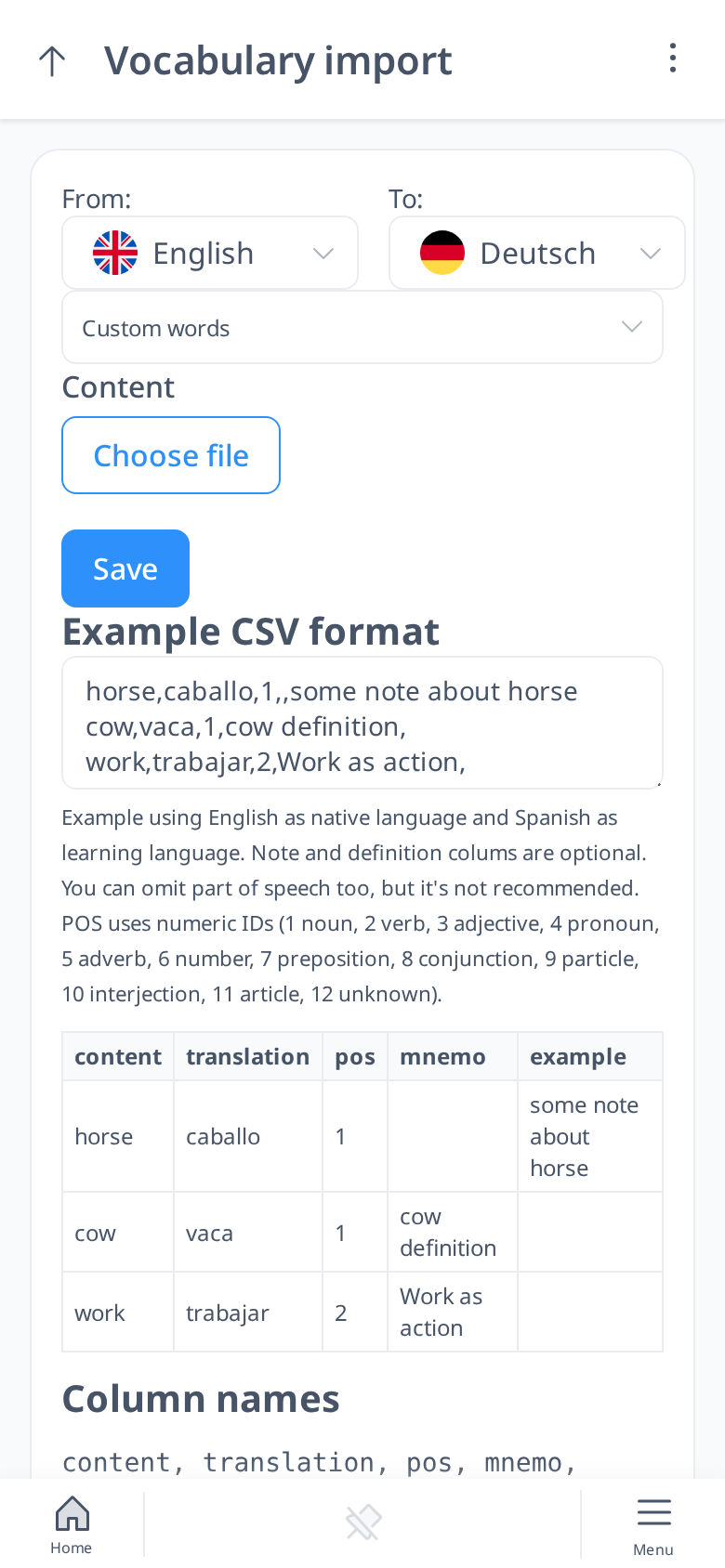
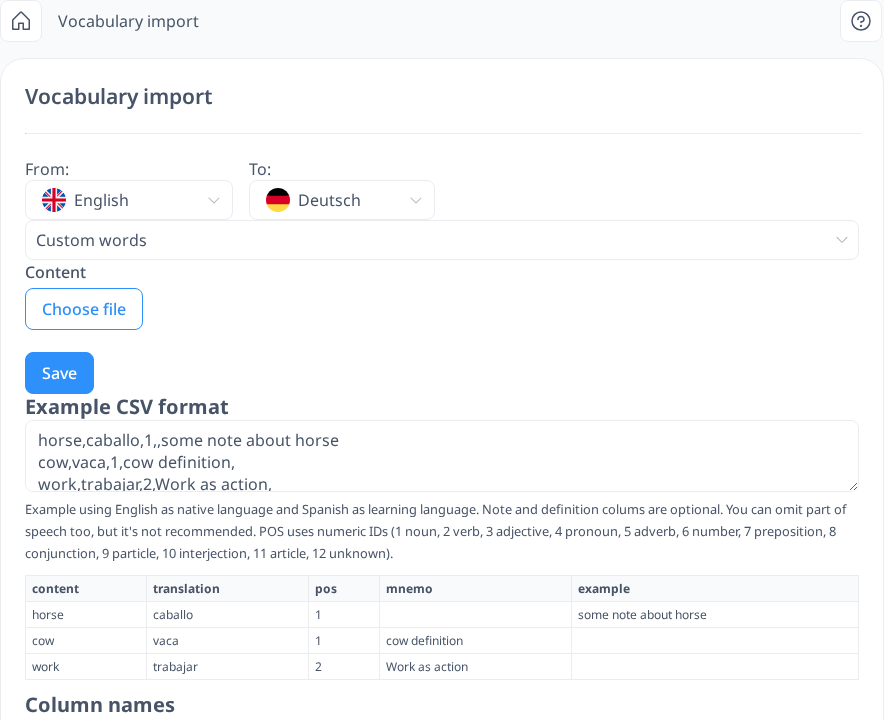
To import words, you first need to select the appropriate languages. In the From box, choose your interface or native language, and in the To box, select the language you are currently learning.
Similar to the Import Words and Sentences feature, you will need to create a CSV file to upload your word list. The file should be structured as follows:
- First column: Words in your native/interface language
- Second column: Translations in the language you are learning
- Third column: Part of speech as a number (1 noun, 2 verb, 3 adjective, 4 pronoun, 5 adverb, 6 number, 7 preposition, 8 conjunction, 9 particle, 10 interjection, 11 article, 12 unknown). The import page shows this list too.
- Fourth column: Your notes about the word (optional)
- Fifth column: Example sentence (optional)
If you do not wish to include notes or example sentences, you can leave the fourth and fifth columns empty. In the CSV file, empty columns will appear as consecutive commas (,,). Please note that column headers should not be included in your file.
Once your CSV file is ready, you can upload it by clicking Choose File, selecting the file from your device, and then clicking Save to complete the import. The words you uploaded will be instantly added to your vocabulary, and you can review them under My Words or Custom Words, both in the Vocabulary and Test sections.