

Edit user settings

★ 21
 [mobile]
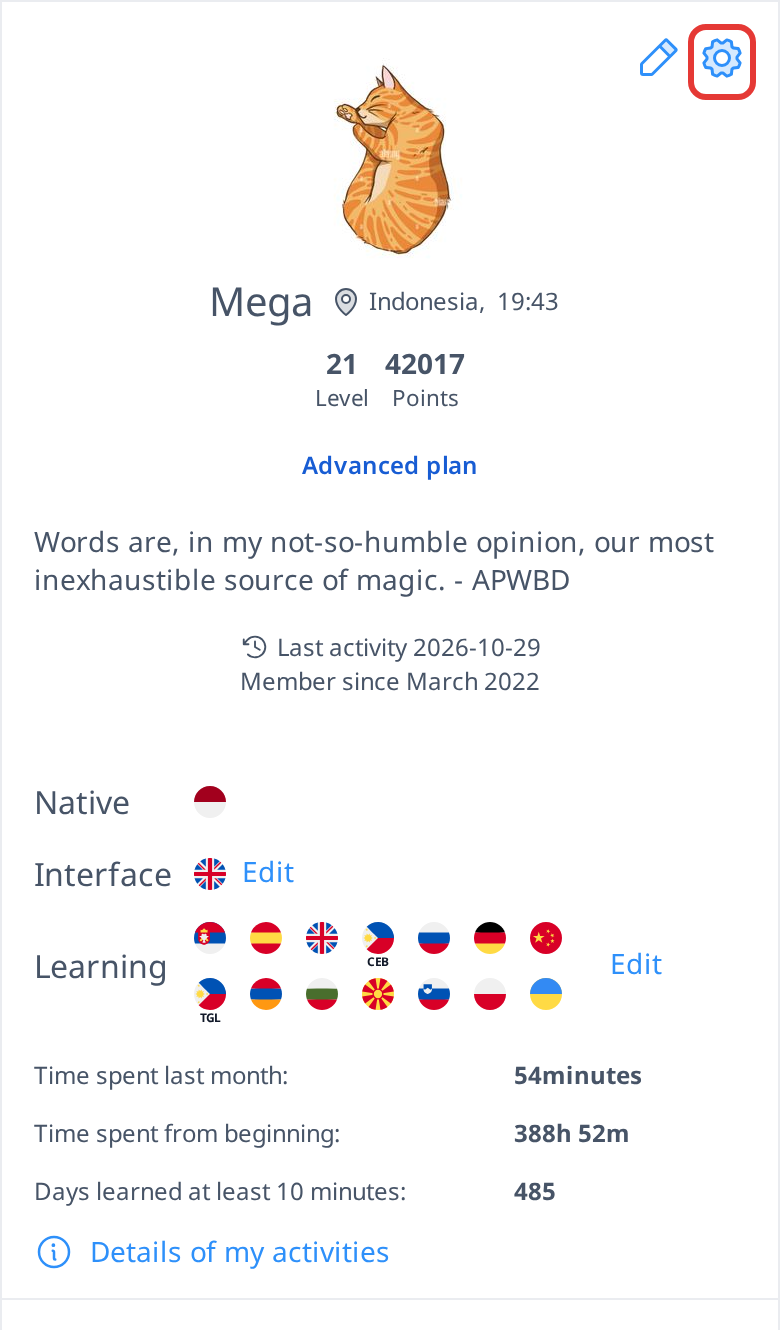
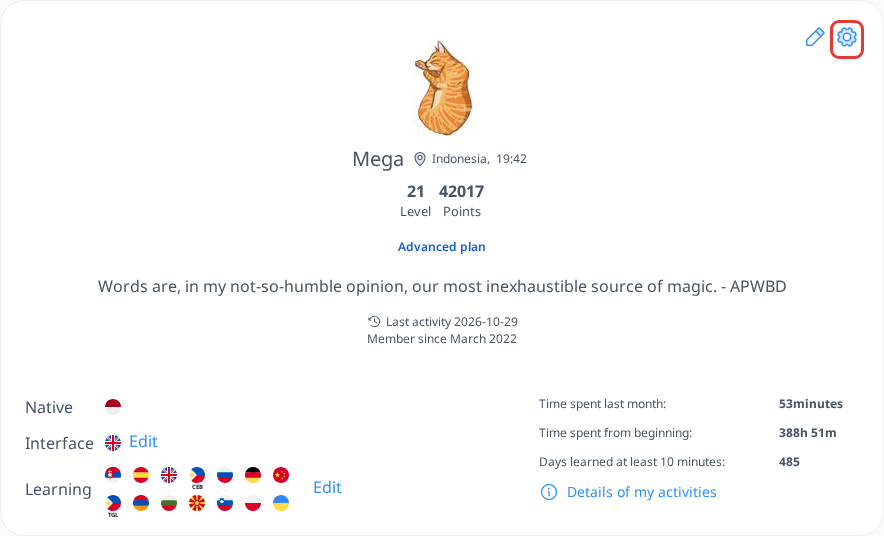
In this section, you can also customize your user settings to tailor your learning experience. To access these options, click the gear icon in the top right corner.
 [mobile]
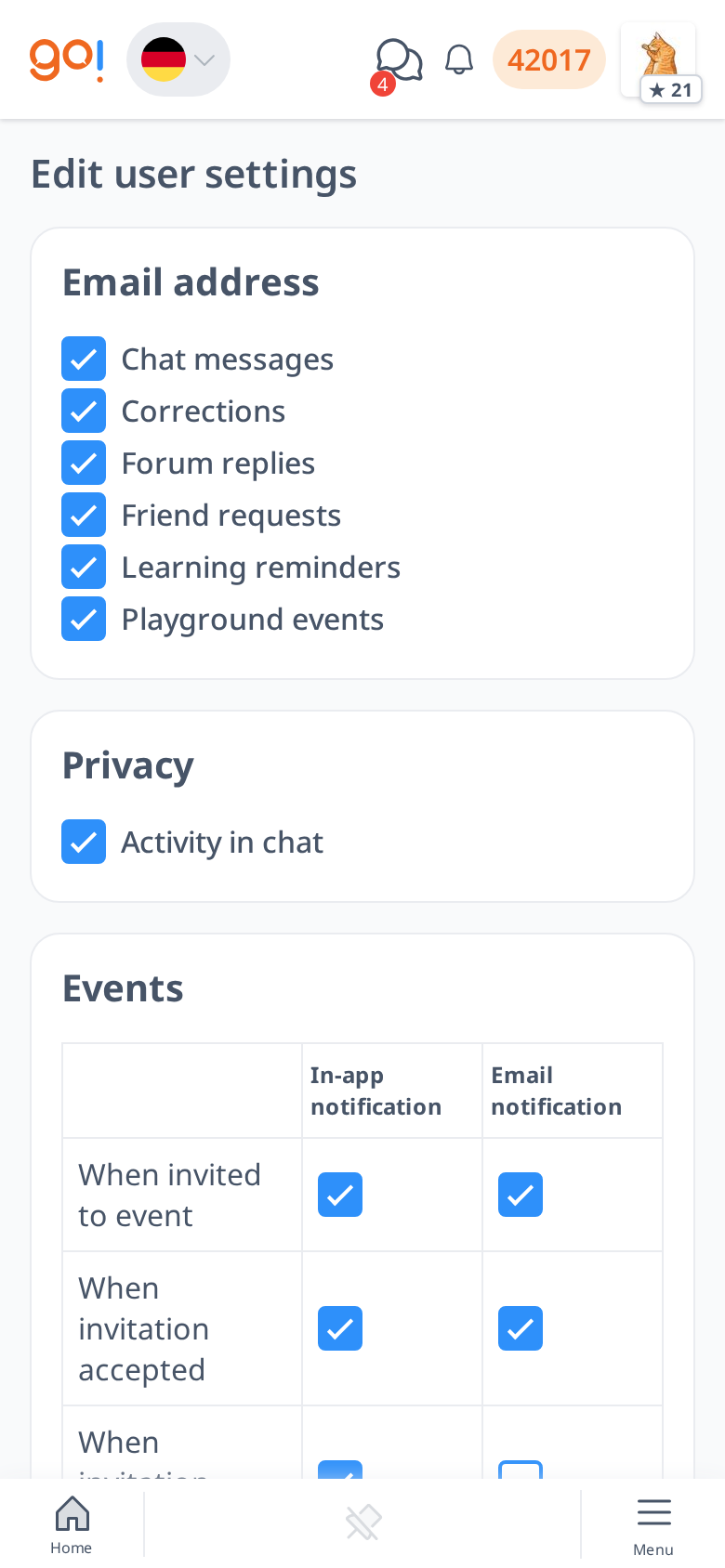
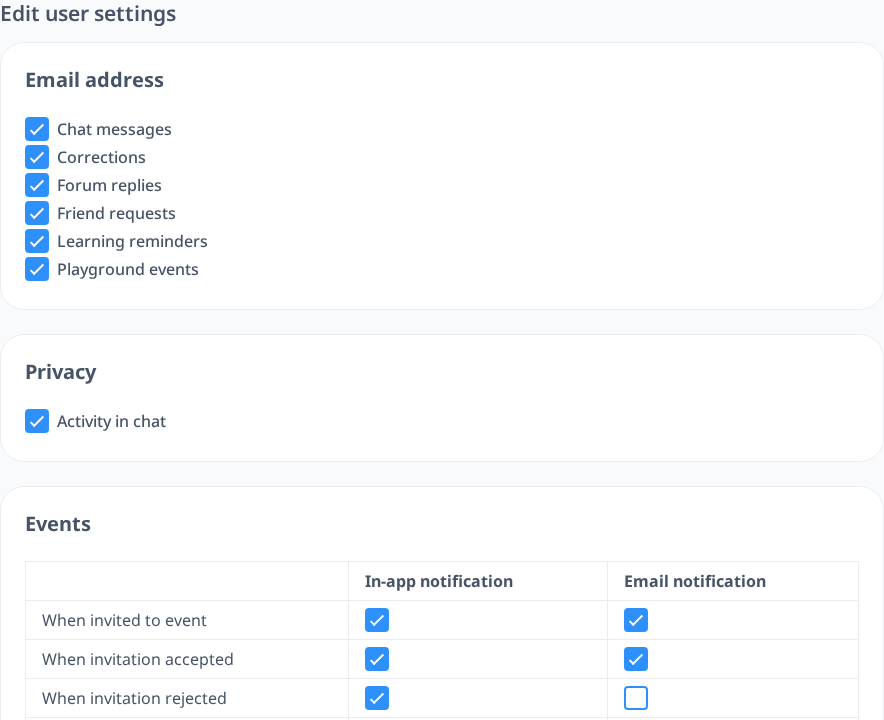
Here, you can adjust various preferences, including:
- Email notifications – Choose which emails you want to receive: chat messages, corrections, forum replies, friend requests, learning reminders and playground events.
- Privacy – Choose whether others can see your activity in chat.
- Events – Choose in-app and email notifications for invitations and upcoming calls, and how many minutes before a call you want to be reminded.
- Test settings – Personalize how your tests work based on your preferences:
- Enable or disable the timer to track how long you take to answer each question.
- Disable audio test types if you are unable to use audio at the moment.
- Enable audio autoplay to automatically hear the correct pronunciation after submitting your answer.
- Choose whether to hide or display the correct answer after each question. If enabled, the system will only move to the next question when you answer correctly. If disabled, the correct answer will always be shown, regardless of whether your response was right or wrong.
- Theme settings – Switch between light mode and dark mode for a more comfortable viewing experience.
- Sounds – Turn sounds on or off for chat, notifications, correct and wrong answers, and finished lessons or tests.
The test options are explained in detail on the Test Settings page. At the bottom of the settings page you can also delete your account.
Adjusting these settings allows you to create a learning environment that suits your needs and preferences, helping you stay focused and engaged.