

Import Custom Text

For beginner language learners, reading a text can often involve a lot of time spent looking up words in a dictionary. Instead of manually searching for each word’s meaning, you can now use the Import Custom Text feature to make the process easier. Simply input the text you’re currently reading in your target language, and as you read, you can click on any word to instantly open the Word Info sidebar. This sidebar provides the word’s translation, example sentences, and other relevant details—saving you time and making reading more seamless and efficient.
 [mobile]
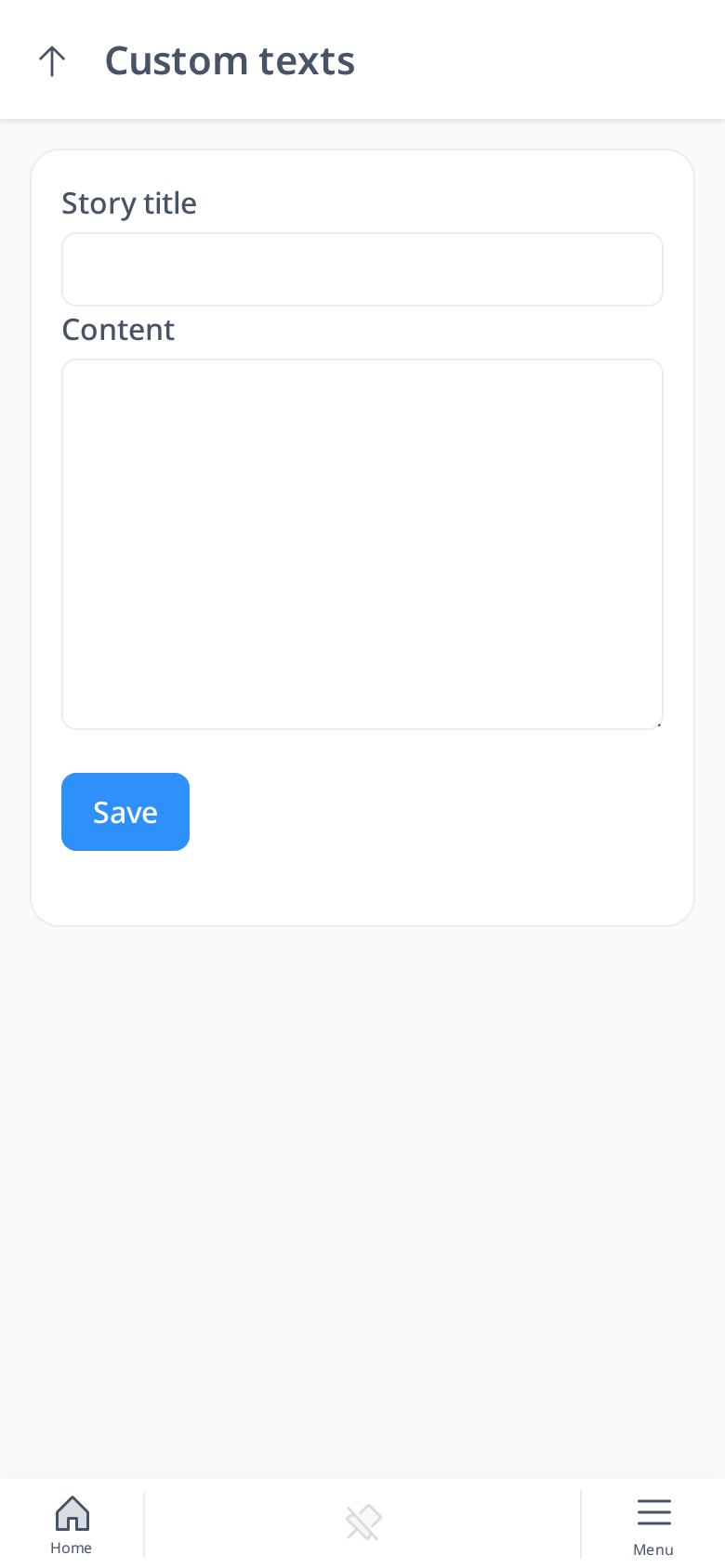
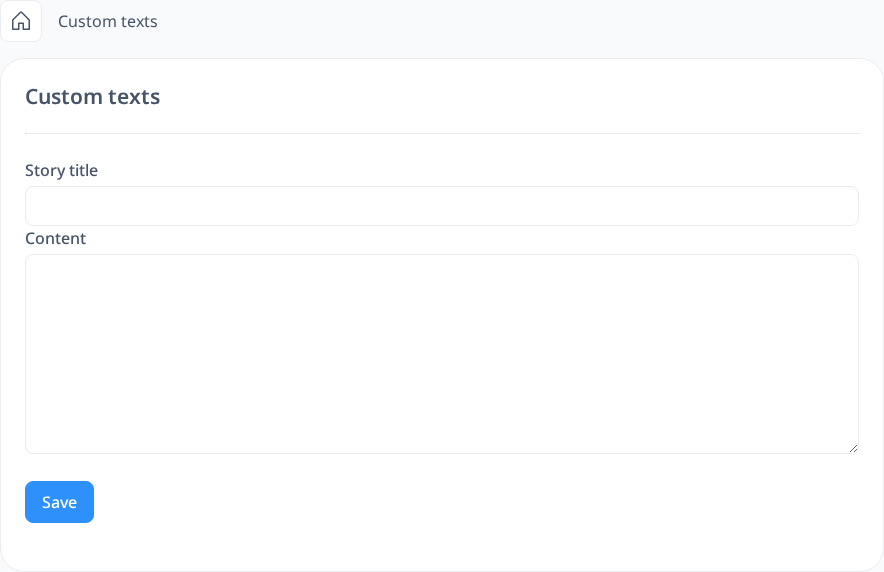
To use this feature, start by copying any text in your target language into the provided text box. Click Add custom text on the Custom texts page, give your text a title, paste it, and click Save, and your custom text will be ready for use.
 [mobile]
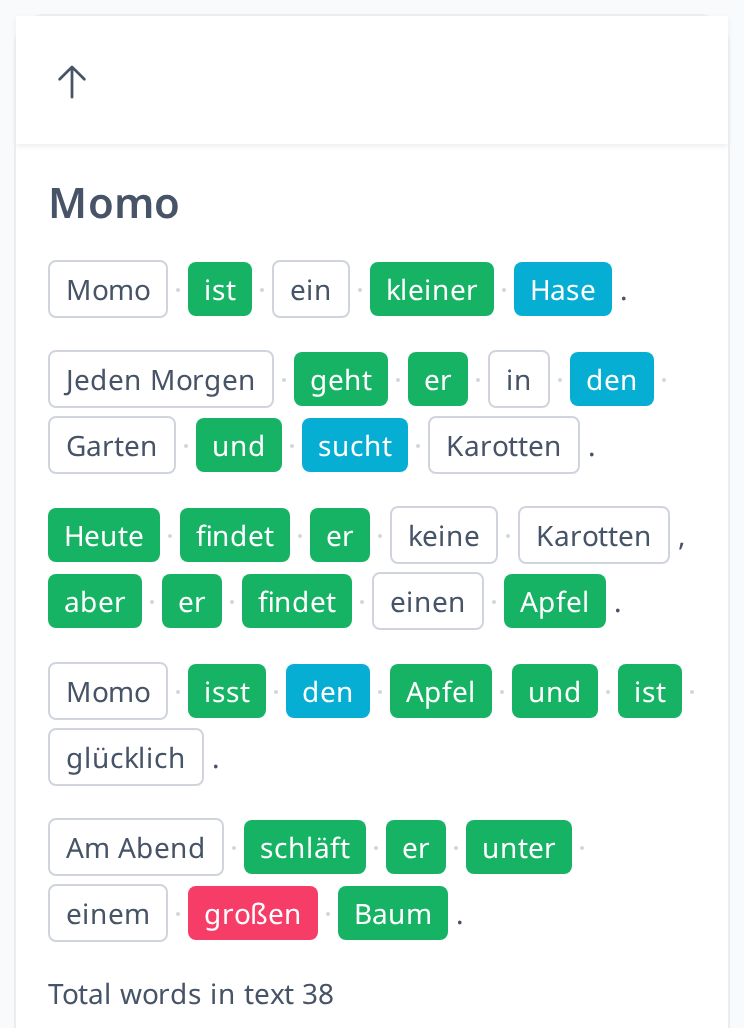
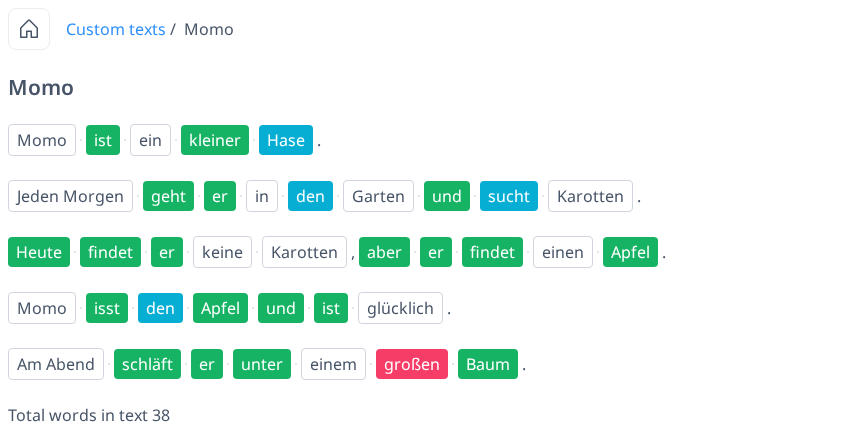
The system will then display the text in a format similar to the Lesson page, where each word appears in its own box. Words with a box are clickable, allowing you to open the Word Info sidebar for more information.
 [mobile]
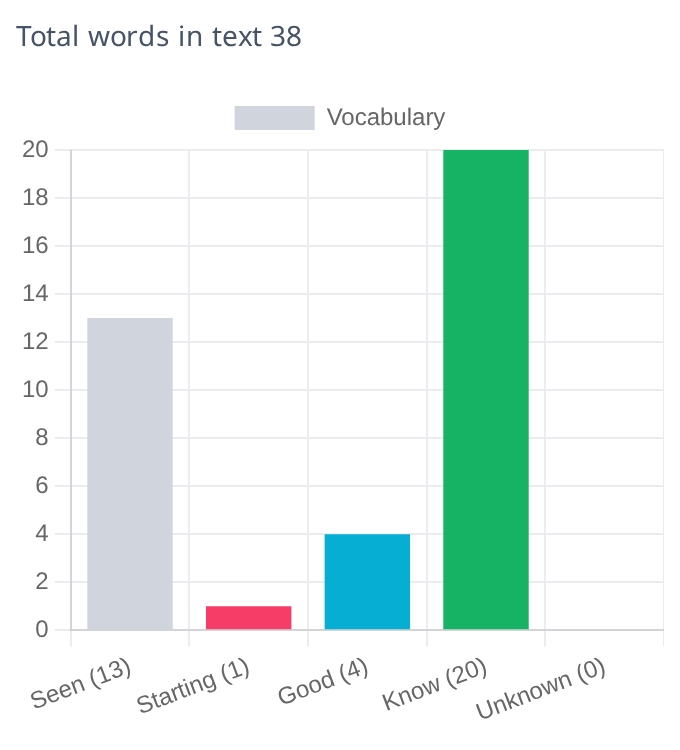
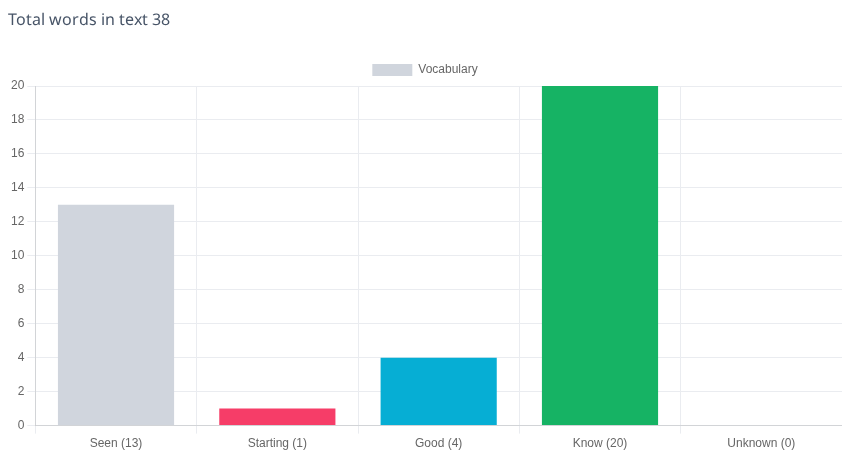
The system will also analyze the text and categorize words based on your familiarity level. Words in the Seen category do not necessarily mean you have encountered them before—they may simply be new words that you are seeing for the first time. For unfamiliar words, you can click on them to open the Word Info sidebar, where you have the option to add them to your vocabulary.
 [mobile]
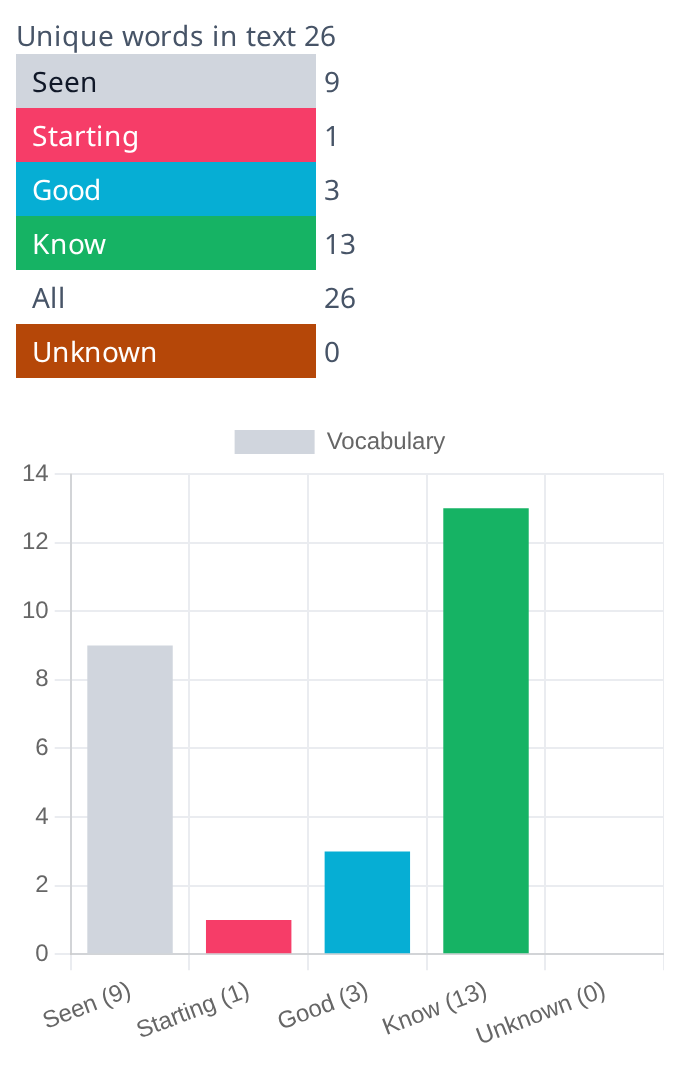
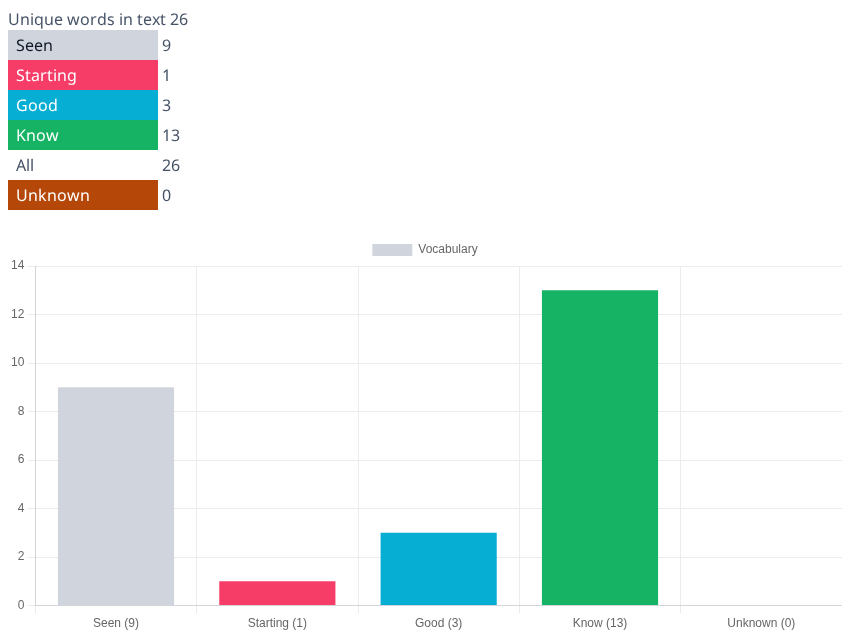
Below the text you see Total words in text and Unique words in text, each with a chart of how many of those words are Seen, Starting, Good, Know or Unknown. For example, a text with 38 words may have only 26 unique words, as some words are repeated—either in the same form or with different inflections.
With this feature, reading in a new language becomes much more efficient. You can quickly look up word translations with a single click, add new words to your vocabulary for future practice, and reduce the number of times you need to manually search in a dictionary. In the example here, two words have no definition in Word Info—one is Momo, a name that naturally has no translation, and the other is Karotten. Instead of searching every unknown word individually, you only need to check the dictionary once for Karotten. If a word doesn’t have an entry in Word Info, you can also add it to your vocabulary using the Add to Dictionary feature.
By using Import Custom Text, you can focus more on understanding and enjoying your reading rather than getting stuck searching for words. This tool helps you build your vocabulary efficiently while making the learning process smoother and more enjoyable.