

Help Others
If you are a native speaker of a language or an advanced learner, you can support other users with their exercises through the Help Others feature. This feature allows you to review and correct Translation, Read, Listen, and Story exercises submitted by other learners.
On the Help Others page, you can:
- Review exercises and check if they need corrections.
- Provide explanations by adding comments to help users understand their mistakes.
- Encourage learners with positive feedback to keep them motivated in their language journey.
By participating in Help Others, you contribute to building a supportive learning community where users help each other grow and improve.
Filtering Exercises
In the Help Others section, you can browse all available exercises or apply filters to refine your search. You can choose to view:
- Active exercises that still need corrections.
- Exercises with existing corrections that you can review.
- Exercises without corrections that need attention.
- Exercises you have previously corrected for reference.
- Archived exercises that are locked and can no longer be corrected because they have already received a perfect correction or do not require any changes.
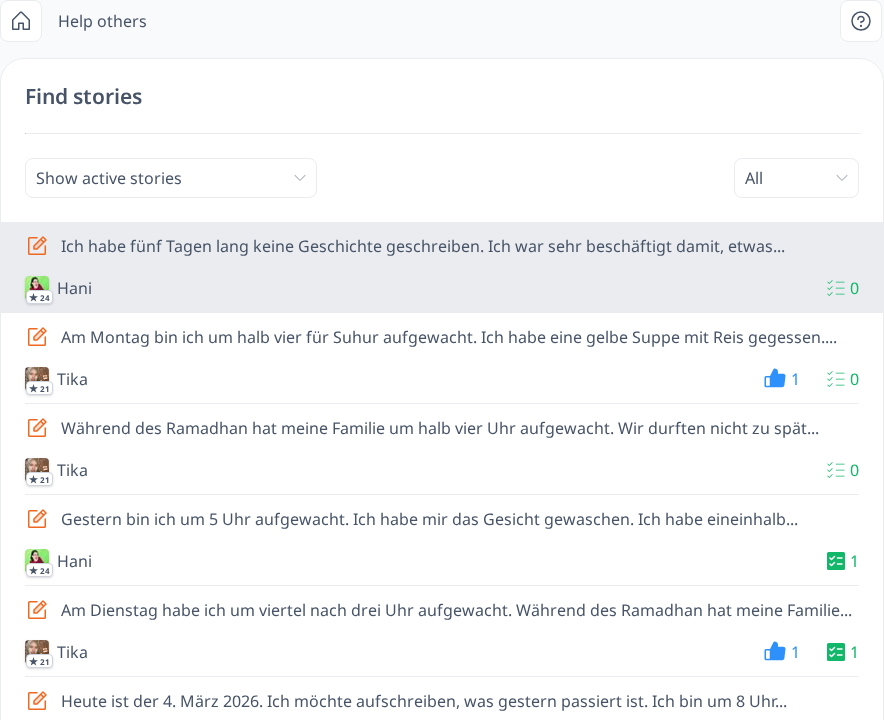
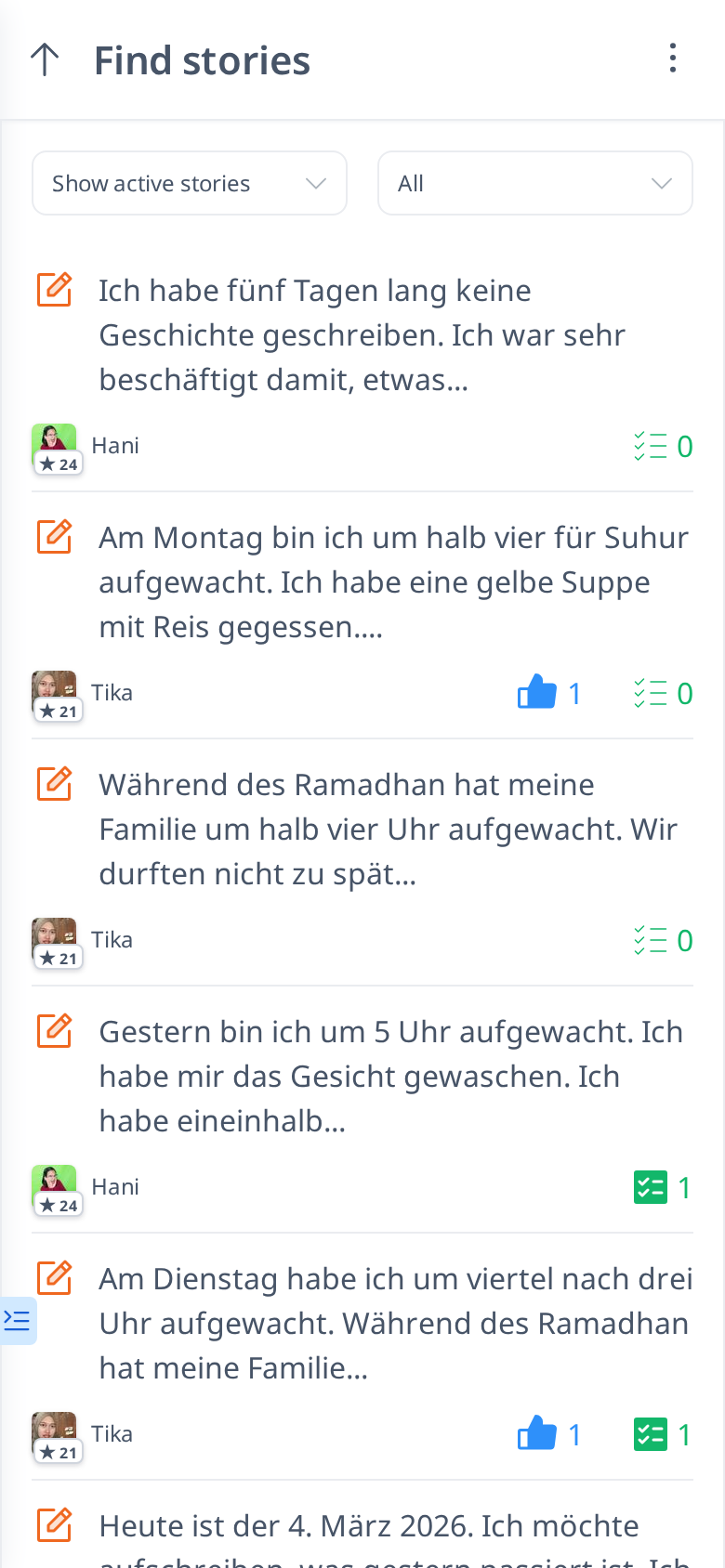
Additionally, you can filter by exercise type, choosing to see only Translation, Read, Listen, or Story exercises.
Offering Corrections in Help Others
The primary way to assist in the Help Others section is by offering corrections. If you notice a mistake in an exercise, you can correct it by clicking the "Add Correction" button.
Offering corrections works similarly to completing an exercise yourself—but with the correct answer. There’s no need to provide explanations at this stage; simply complete the exercise without errors.
How Corrections Work
- For Translation, Listen, and Story Exercises, you will see the original submission and can make corrections by editing, adding, or removing parts of the text as needed.
- For Read Exercises, you will need to read and complete the exercise as if you were the original learner.
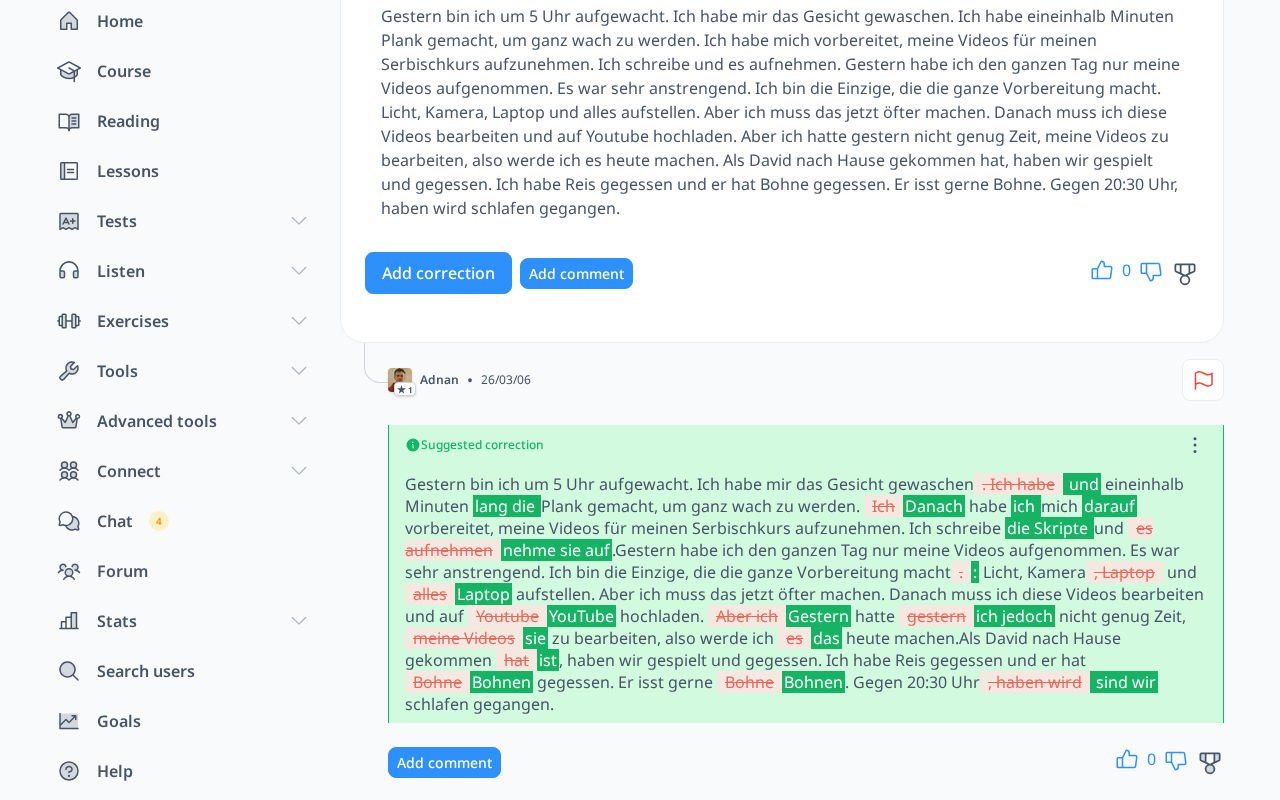
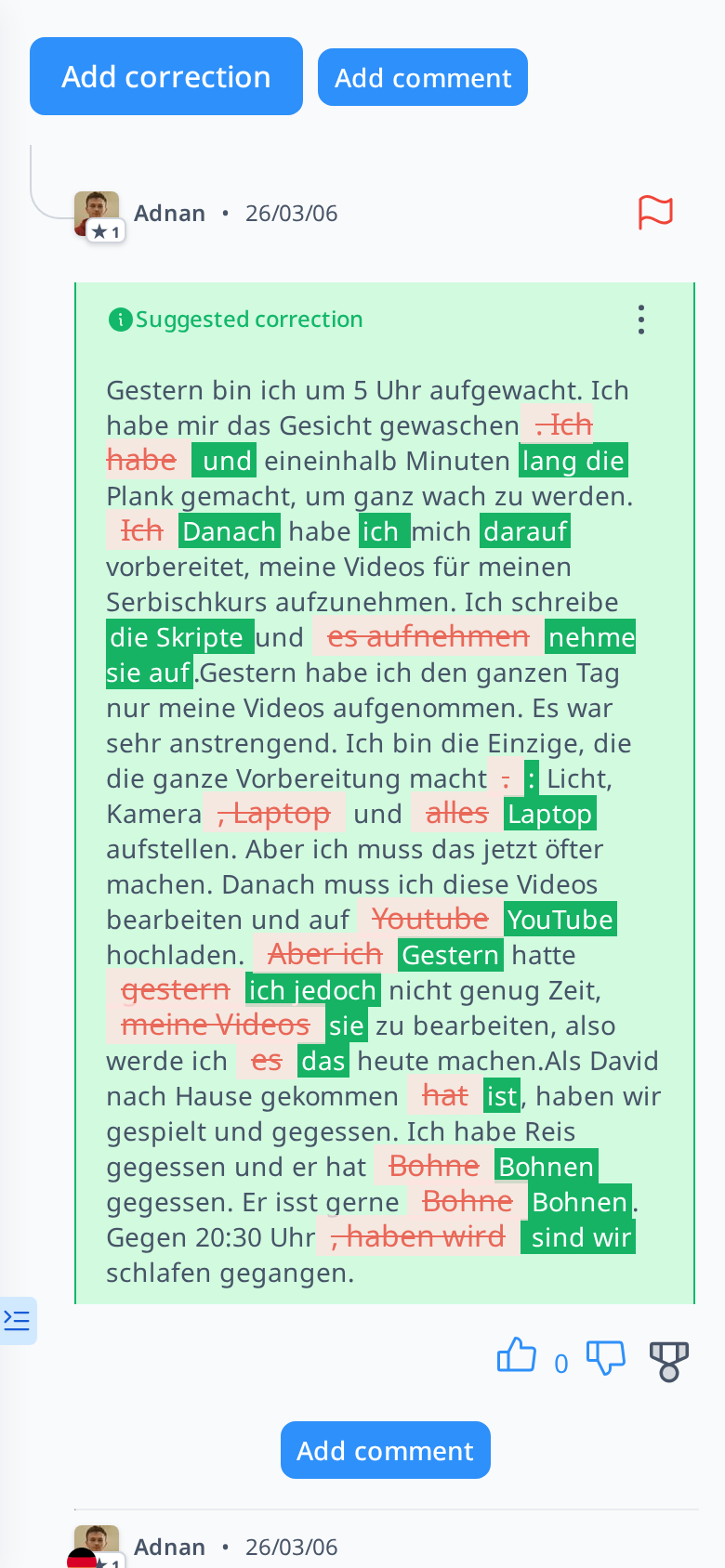
Once you click "Send", you will see a comparison between your corrected version and the original submission. The system will automatically highlight and track changes to show the differences.
Adding Comments to Explain Corrections
If you believe an explanation is necessary—for example, to clarify why a particular form is incorrect and which form should be used instead—you can provide additional details using the "Add Comment" button.
To keep your comments clear and well-structured, consider organizing them into separate entries. For instance, you might dedicate one comment per type of correction, making it easier for the learner to follow your feedback.
Marking an Exercise as Perfect


If an exercise is completely correct and does not require any corrections, you can click the "Mark as Perfect" button. This lets the creator and other users know that the submission is accurate and does not need further review.
Vote Up or Down

With these buttons, you can show your appreciation or dissatisfaction with an exercise by liking or disliking it. This helps provide feedback to the creator and encourages engagement within the community.
Reporting Issues in an Exercise or Correction


If you notice something seriously wrong with an exercise or a correction, you can report it to a moderator by clicking the Red Flag button. This option is available for both exercises and corrections, ensuring that any issues can be addressed appropriately.