

Test Settings
You can control how your tests work by adjusting the Test Settings, which let you edit the default options to suit your preferences. These settings are found in your Profile.
How to Access Test Settings
- Go to "My Profile"
- Click Settings in the upper right corner of your profile.
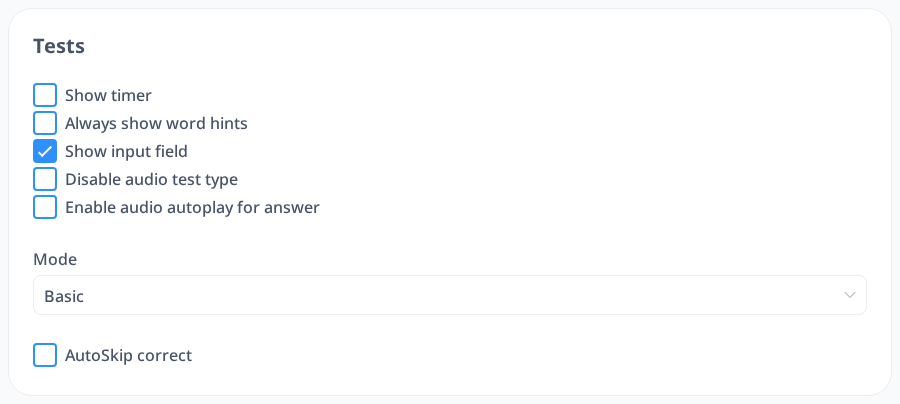
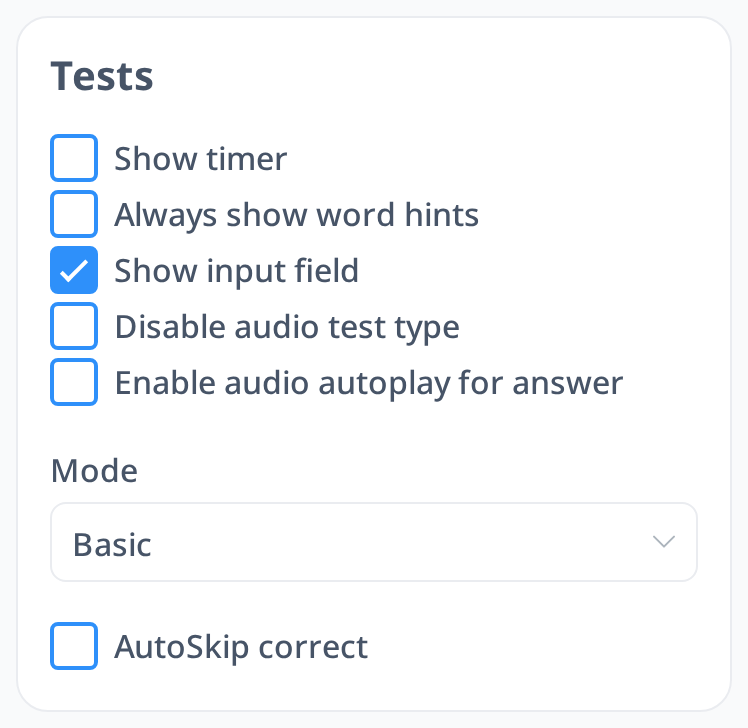
- Find the Tests box.
- Adjust the options however you like to personalize your test experience.
What You Can Customize in Test Settings
Here’s what you’ll find and how each option works:
Show Timer
- When checked, a timer appears during tests, letting you track how quickly you translate words or sentences. This is great for monitoring your speed. Uncheck it to hide the timer if you’d rather not see it.
Always Show Word Hints
- Some words have a hint (for example, which meaning of the word is asked). Normally you see it by hovering or clicking the small i icon next to the word. When this option is checked, the hint is always shown.
Show Input Field
- Check this to display an input field where you type your answers. If you uncheck it, the input field disappears, meaning you won’t type answers during tests. Keep it checked if you prefer typing every time.
Disable Audio Test Type
- Checking this skips the Audio Test type, where you listen to audio in your learning language and respond in your native or interface language. If unchecked, you’ll encounter these audio questions in your tests.
Enable Audio Autoplay for Answer
- When checked, the correct answer’s audio plays automatically after you submit your response—no need to click anything. Uncheck it if you’d rather play the audio manually after answering.
Mode
- Choose from three modes in a dropdown list:
- Basic: The default mode. You get an input field to type your answers.

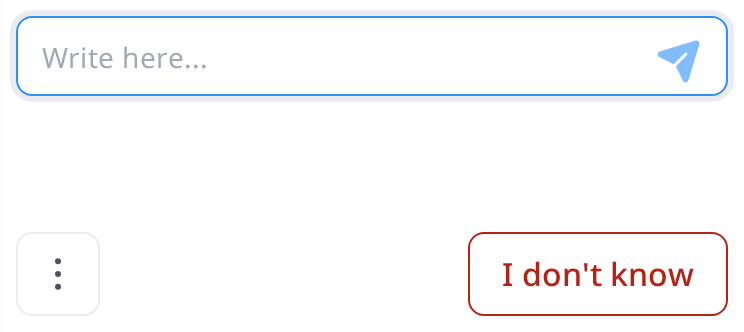
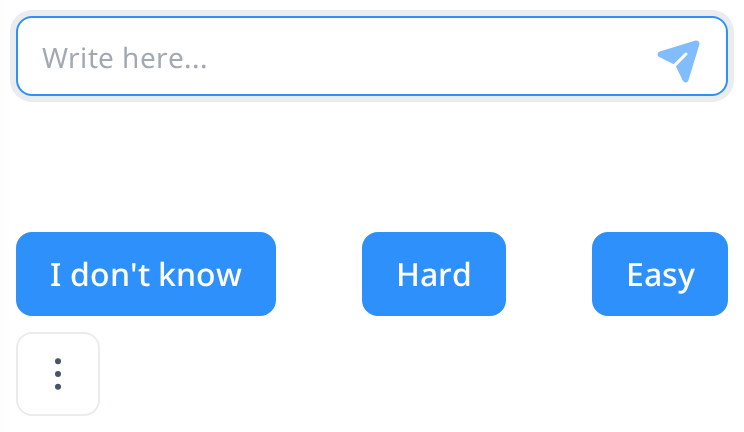
- Advanced: Instead of the "I don’t know" button, you rate how well you knew the answer with three buttons: I don’t know, Hard or Easy.
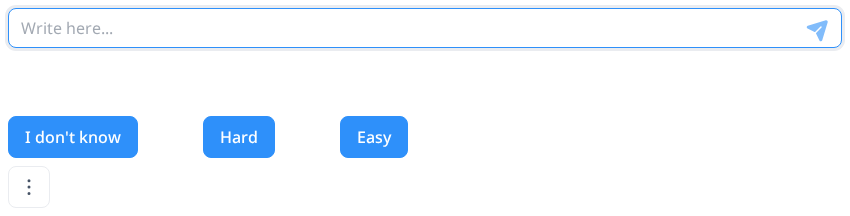
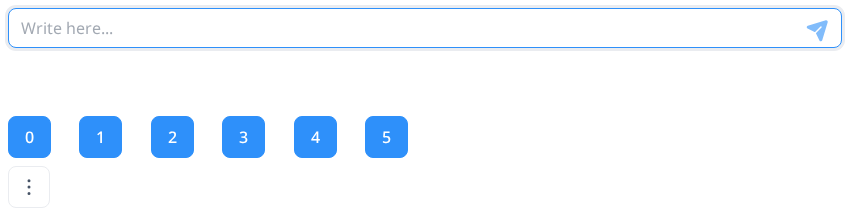
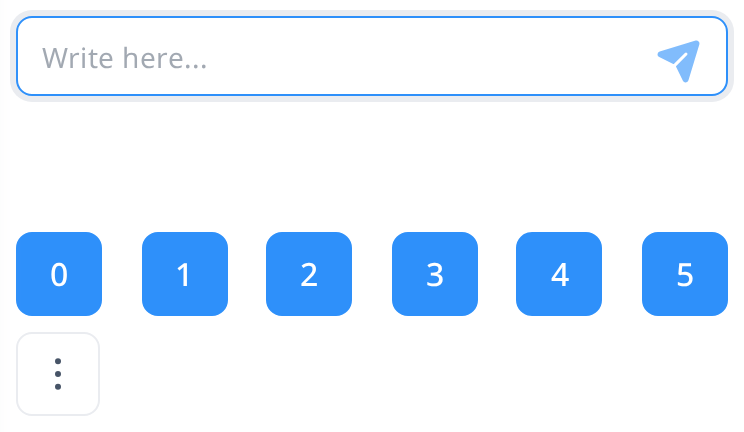
- Expert: You rate your answer with six buttons, from 0 to 5: 0 means you didn’t remember it at all, 1 and 2 mean your answer was wrong (2: the correct answer looked easy once you saw it), 3 means correct but very hard, 4 correct after thinking, and 5 correct, easy and fast.
Autoskip Correct
- When checked, correct answers are skipped automatically, moving you to the next question faster. Uncheck it to review each correct answer before proceeding.


After adjusting these settings, click the "Save" button to apply your changes.