

Lesson Content
Lesson Content is where you learn words within their contexts. Each lesson includes sentences related to the lesson’s title. These sentences are made up of words that you can add directly to your vocabulary by clicking on them. You can play the audio for a specific word or the entire sentence. Below each word and sentence, you’ll see translations, along with the part of speech for that word, examples of other sentences where the selected word appears, and its other forms.
Where to Find the Lesson Content
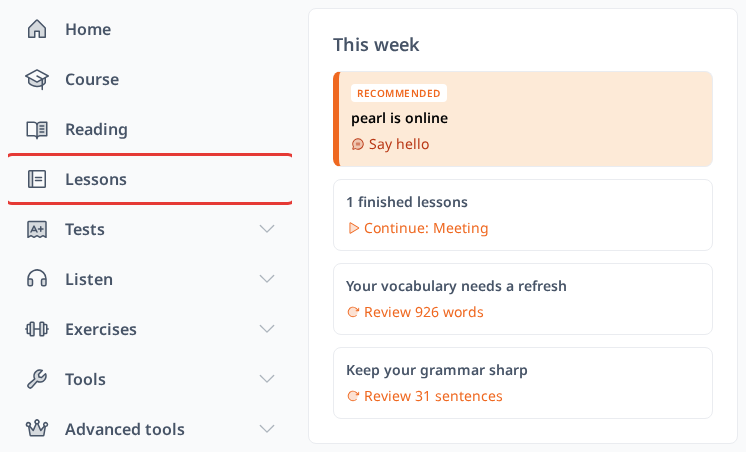
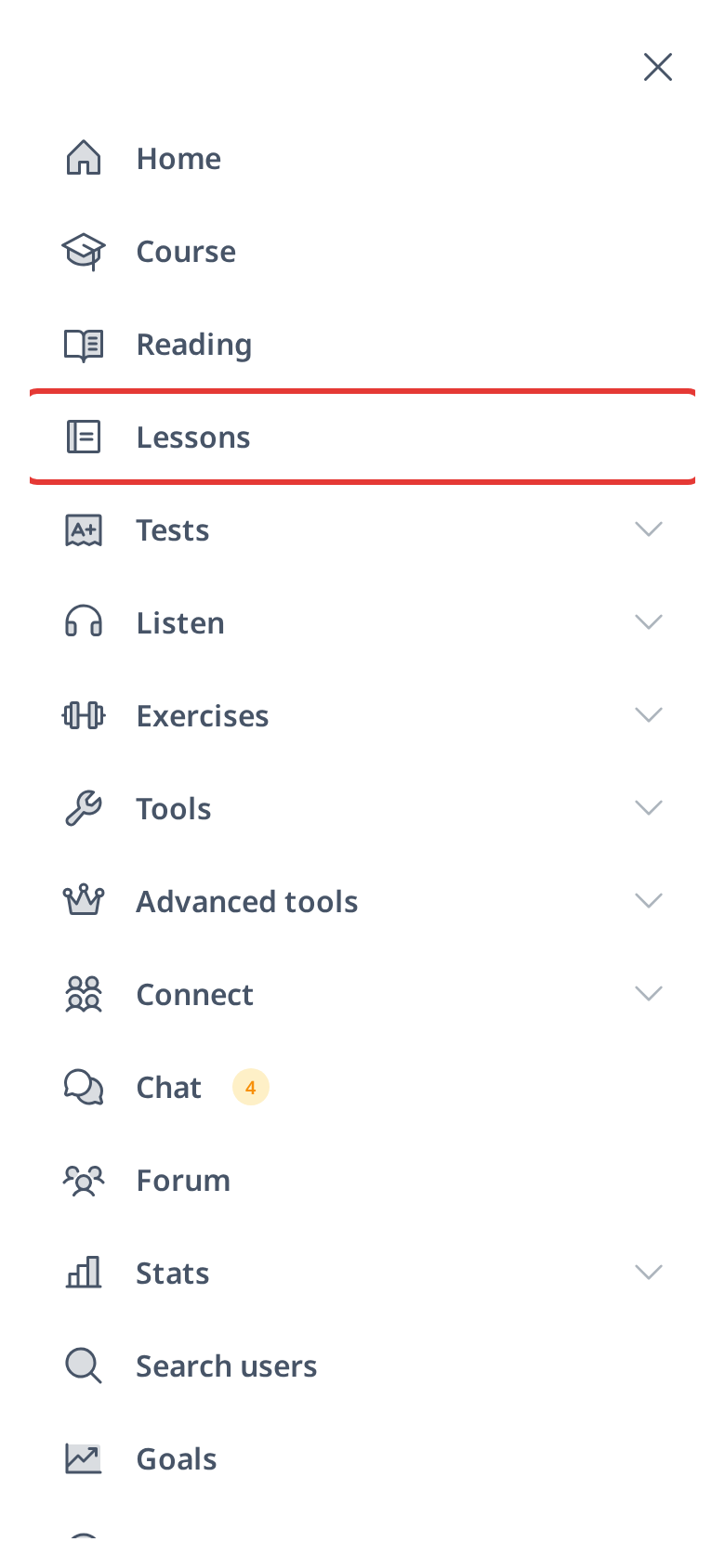
Open Lessons from the main menu. On a computer the menu is on the left side of the screen; on a phone, tap Menu at the bottom of the screen.
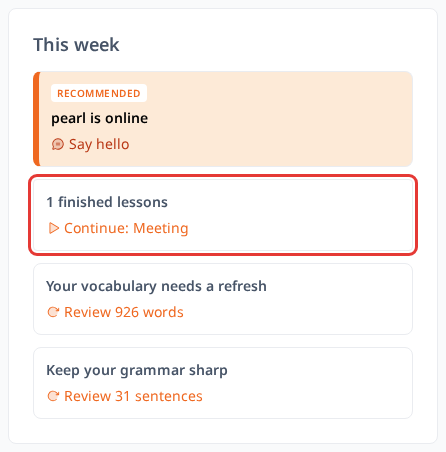
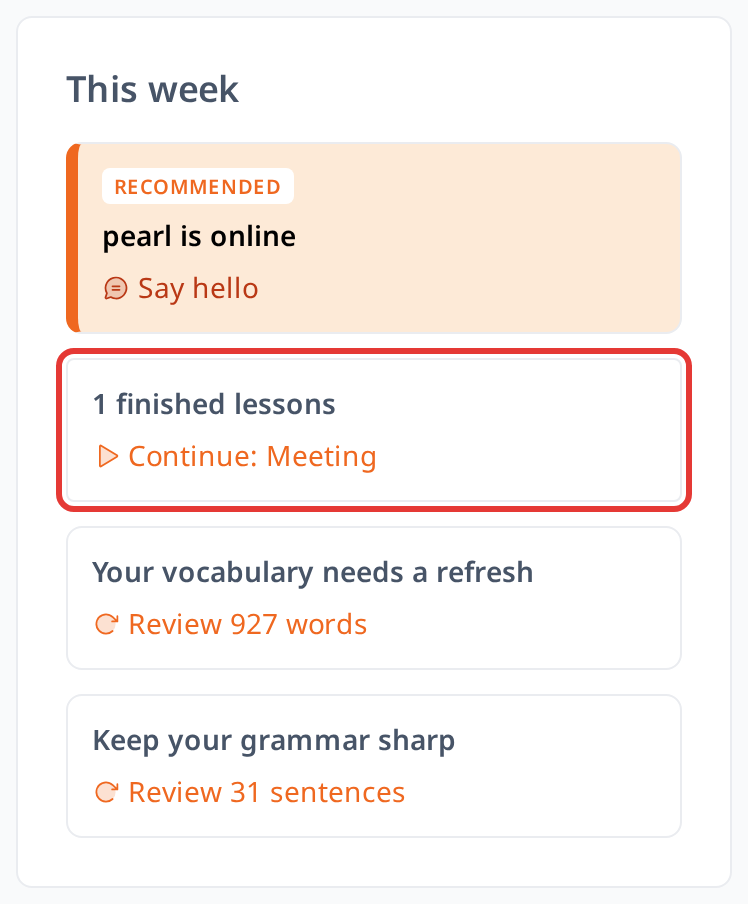
You can also go straight to your next lesson from the Home screen: the lessons card links to the lesson you should do next (for example "Start: Greetings" or "Continue: Meeting").
What to Do in the Lesson Content
When you open a lesson, like "Meeting," you’ll see sentences written in the language you’re learning, paired with translations in your interface or native language.
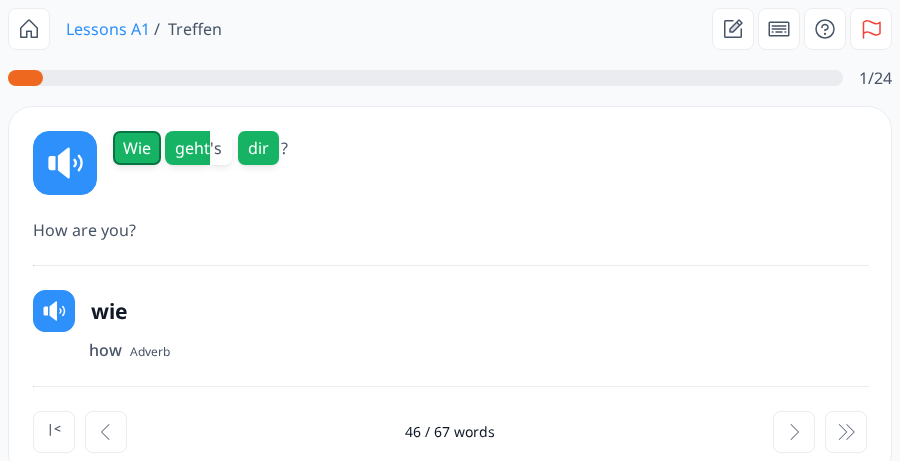
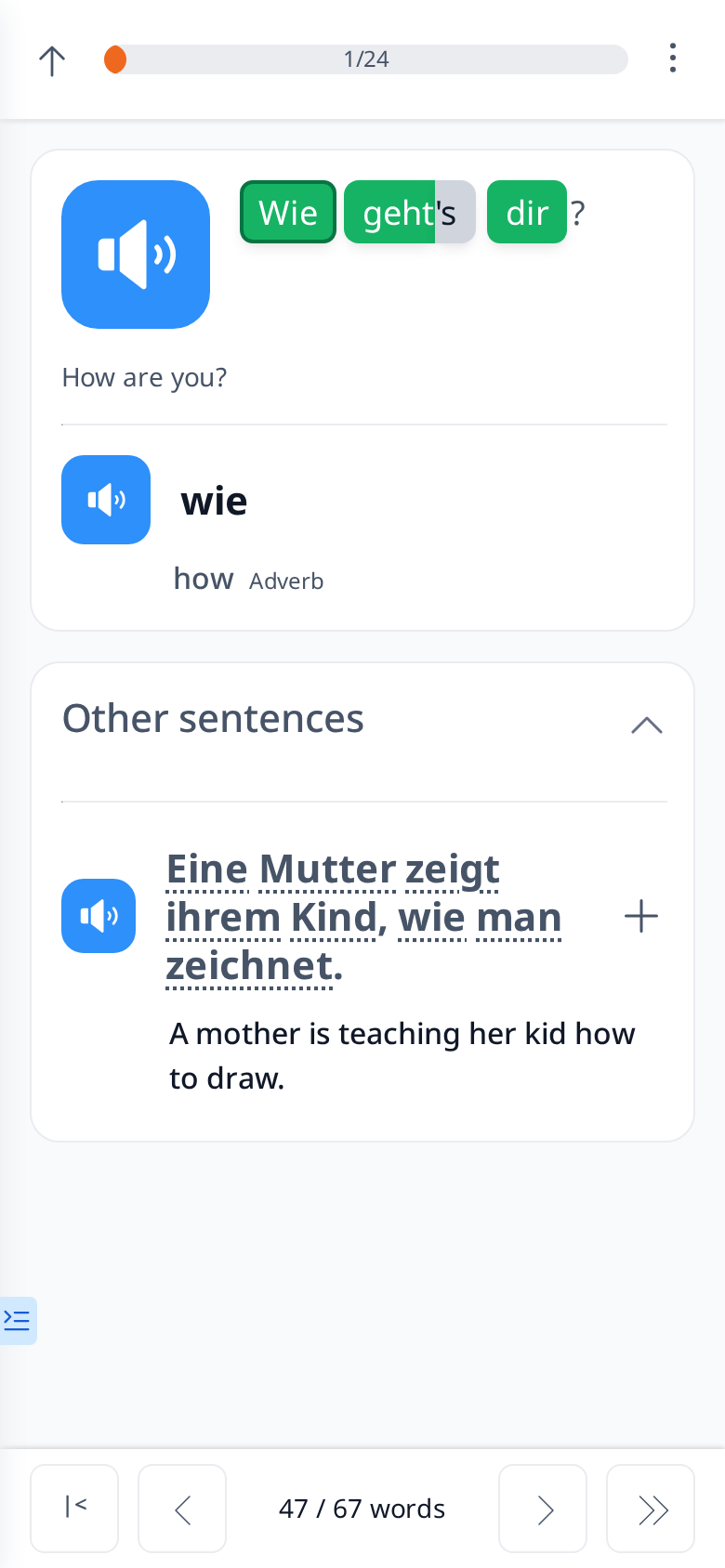
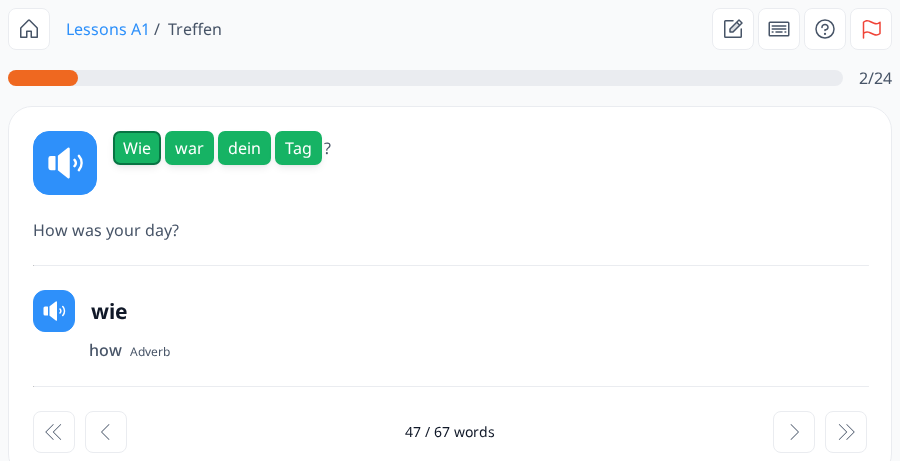
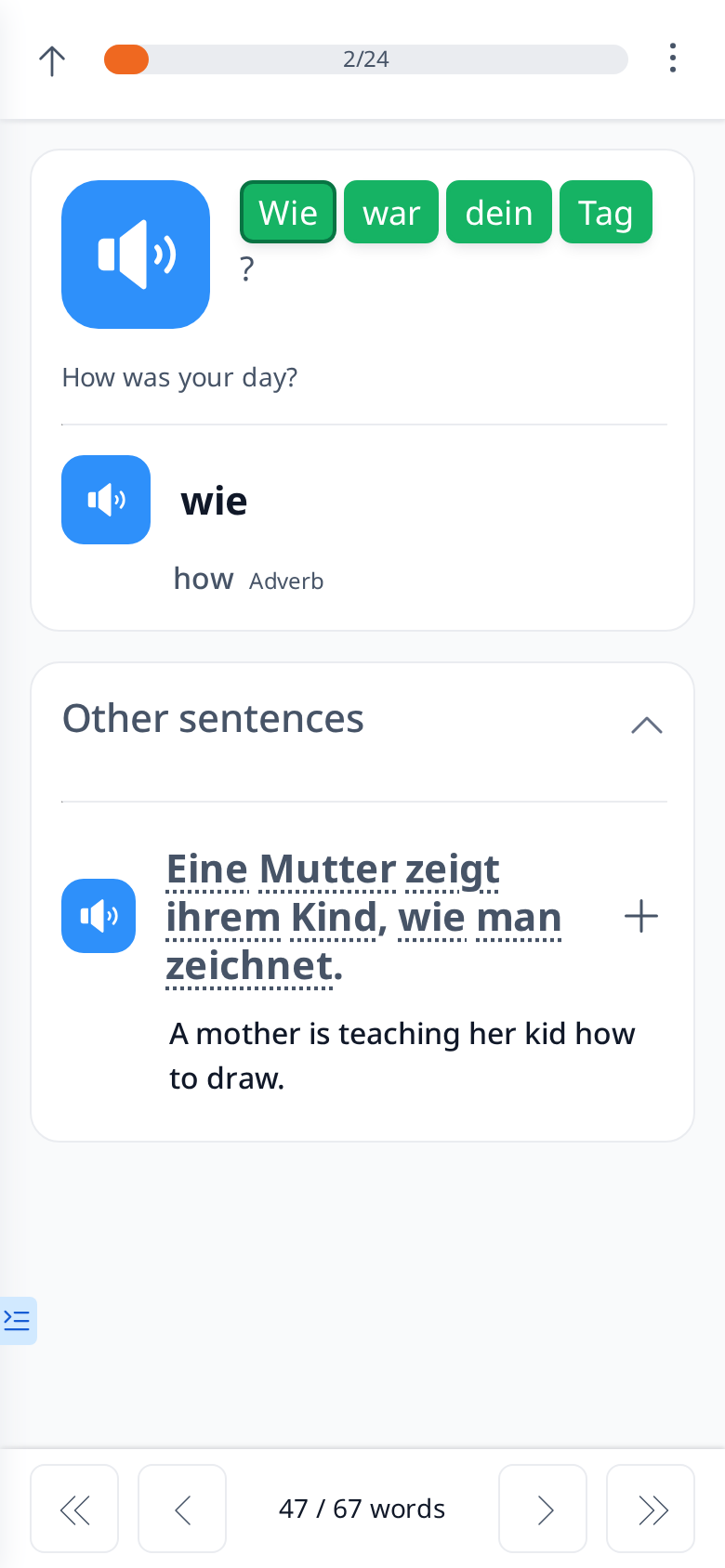
The numbers next to the progress bar (for example 1/12 and 2/12) show which sentence you are viewing and how many sentences the lesson has. On a phone they are in the progress bar at the top of the screen.
You can click the "speaker" icon to listen to the audio for each word or sentence.
You may also notice that each word in a sentence is displayed in its own box, with either a colored or white background. This means you can click on each word to view additional information, like this:
Below the sentence, some words also show "Other forms" and "Other sentences" sections. Click a section title to collapse or expand it.
- Other Forms: This feature shows the inflected forms of the word, allowing you to review its variations.
- Other Sentences: This provides additional examples of how the word is used in different sentences.
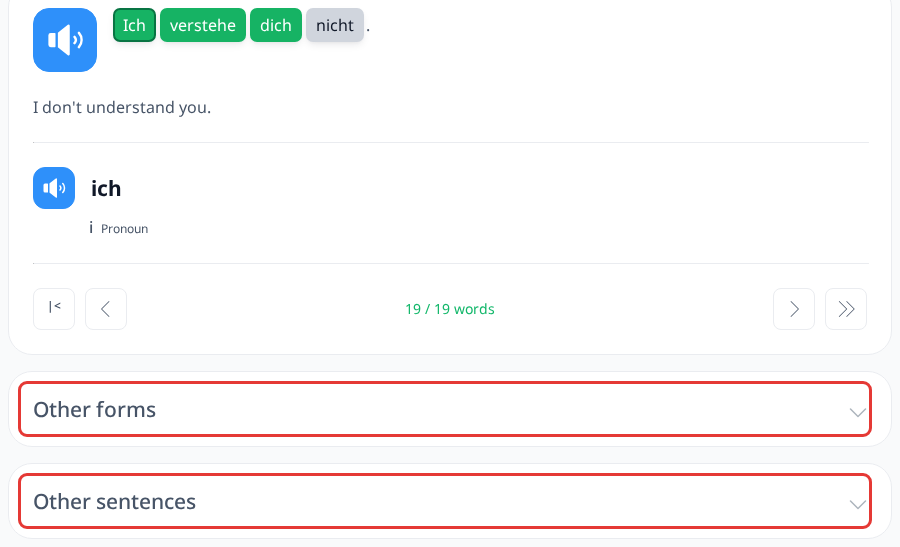
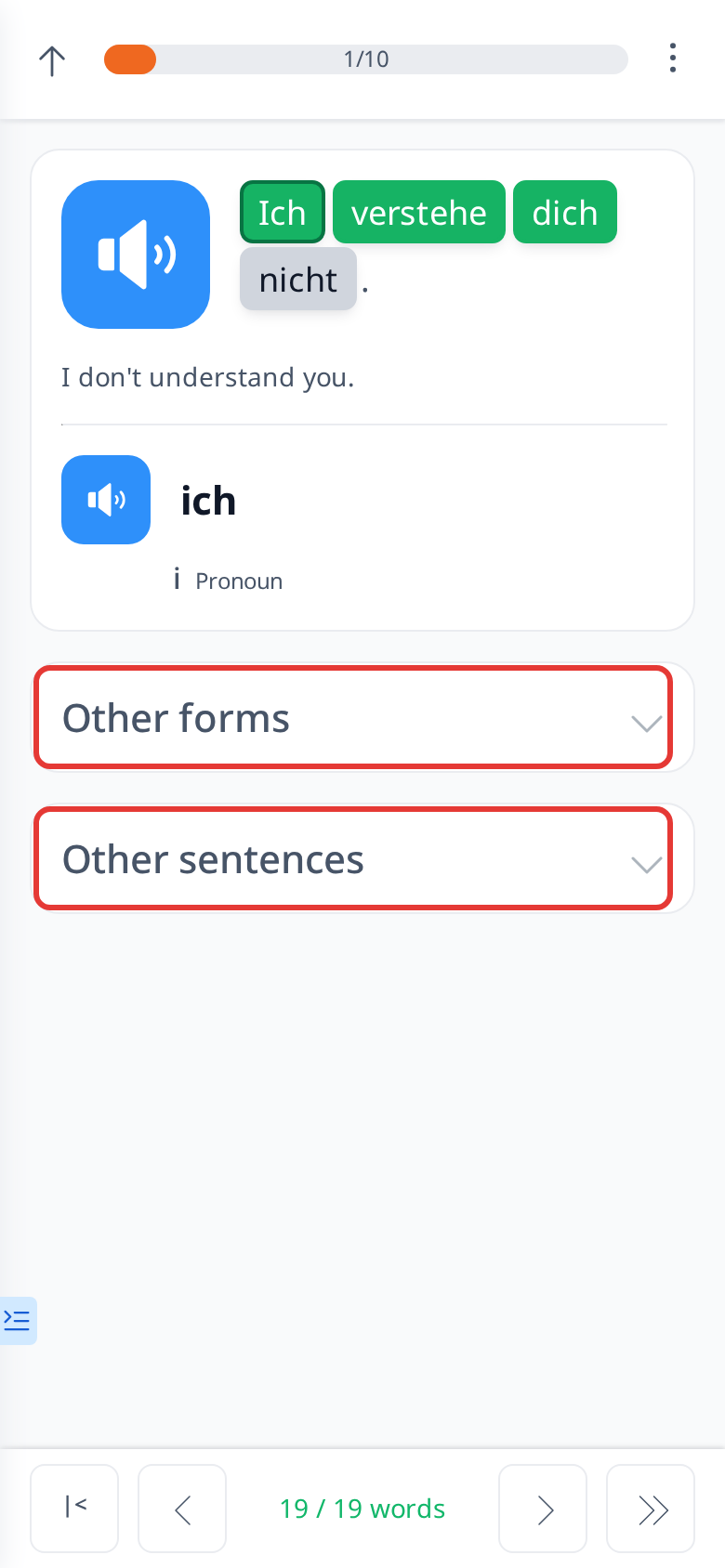
Not all words have these features, but you can always see each word's translation, its part of speech, and listen to the audio to learn the correct pronunciation.
You can use the > and < buttons to navigate between words, or the >> and << buttons to move to the next or previous sentence.