Tests
Tests help you practice and master the language you’re learning through several types, all found under Tests in the menu: Word tests, Sentence tests, Listening tests, Word forms, My words, My sentences and the Level test. Each type focuses on a different skill, and here’s how they work.
Word Tests involve the words you’ve added from Lessons or Word Info. You’ll face three kinds of questions here:
- Write the Translation: You’re shown a word in your learning language and must type its translation into your native or interface language.
- Multiple Choice: You pick the correct translation of a word from several options.
- Audio Question: You hear a word’s audio in your learning language and type its translation in your native or interface language.
- To take a Word Test, follow the instructions—some ask you to translate into your learning language, others into your native language. The goal is to actively learn these words and help them stick in your long-term memory. If you answer incorrectly, the correct answer appears by default, complete with audio and example sentences showing how the word is used. When you’ve completed all Word Tests for the moment, you’ll see an "Empty Vocabulary" message, meaning you’ve cleared all tests for now. It’s a good habit to empty your vocabulary daily!
Sentence Tests use selected sentences from the Lessons. In these tests, you’ll translate each sentence into your learning language by typing it into an input field. This practice helps you get comfortable with sentence construction and structure. If you get one wrong, the correct translation is shown by default to help you learn.
Listening Tests also draw from Lesson sentences, but focus on audio. You’ll hear a sentence in your learning language and type what you hear into an input field. This strengthens your listening skills in the language. A wrong answer triggers the correct text from the audio to appear by default.
My Words feature words you’ve added yourself using Tools → Add word. After you add a word there, it shows up in My Words Tests, where you’ll translate it into your learning language. This lets you learn custom words not already in our database. If you answer incorrectly, the correct translation is displayed by default.
My Sentences work similarly, using sentences you’ve added through Tools → Add sentence. Once added, they appear in My Sentences Tests, and you’ll translate each one into your learning language. This helps you practice your own custom sentences. A wrong answer shows the correct translation by default.
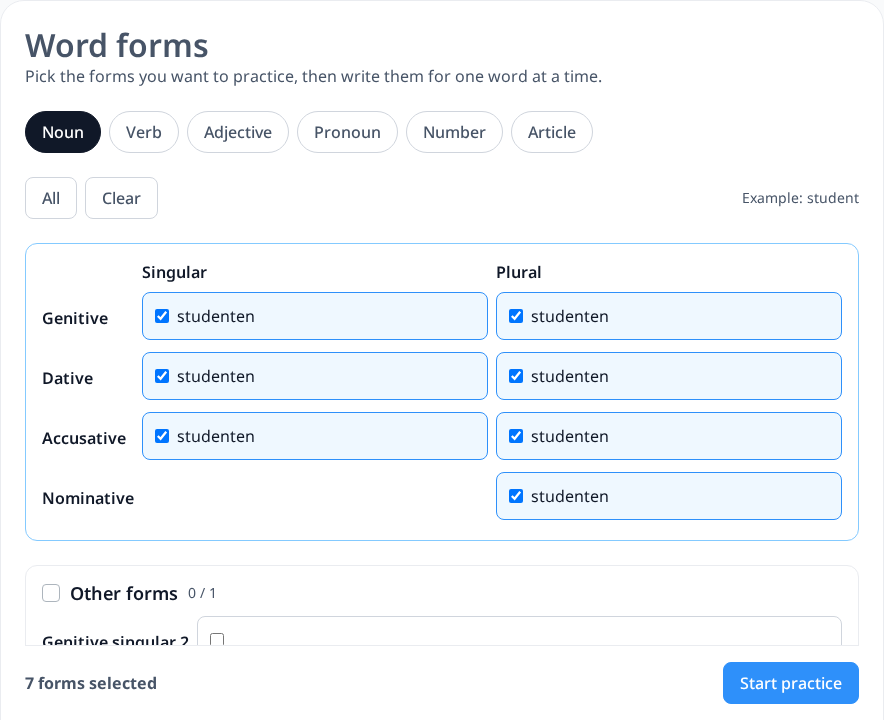
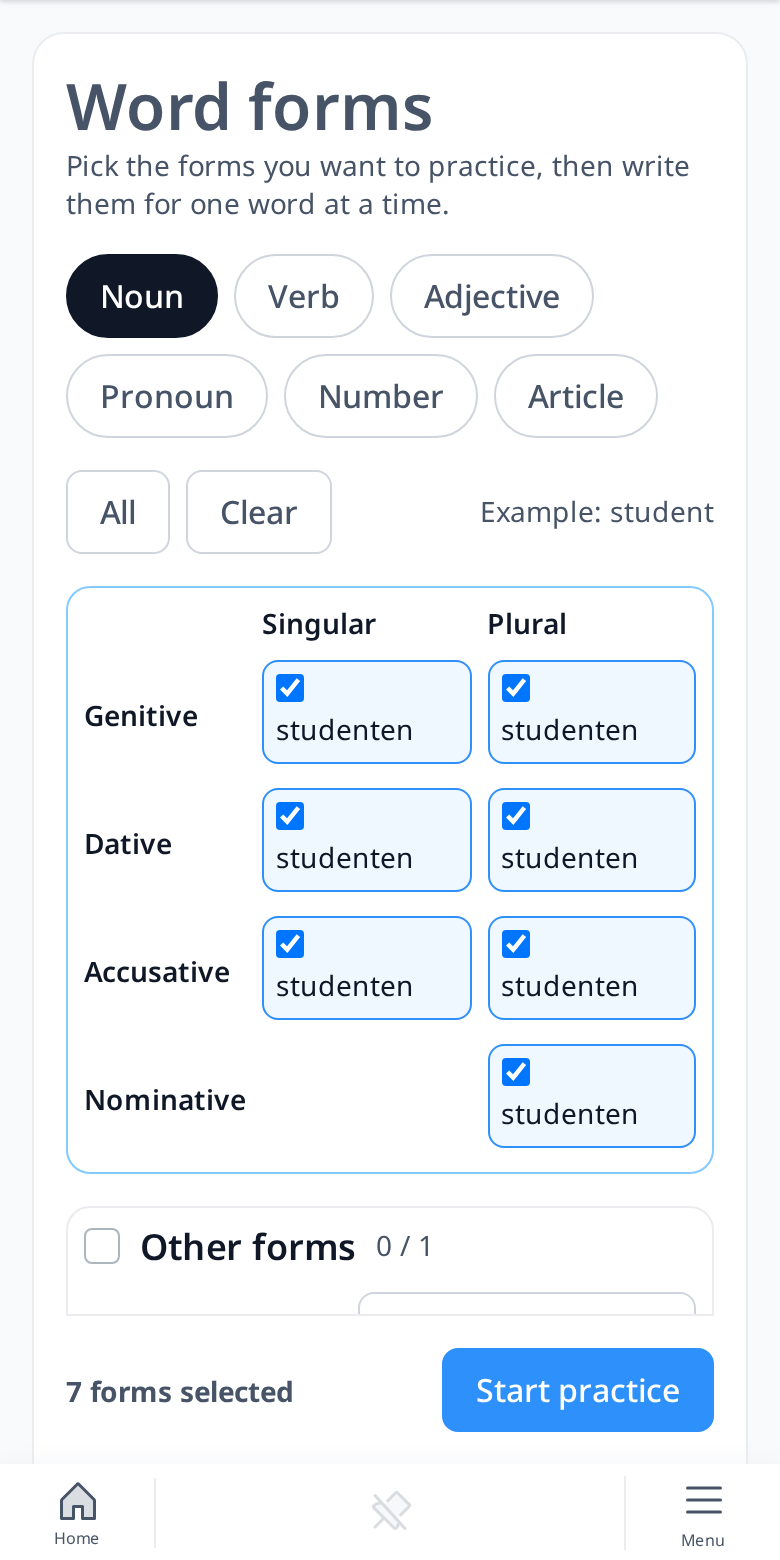
Word forms let you practice the inflected forms of words. Pick the forms you want to practice (for example noun cases or verb tenses), then write them for one word at a time.
Level test is for learners who already know some of the language. It suggests your starting level, then you quickly check the easier words and mark the ones you already know. The page shows when you can take the next level test.
Review Mode
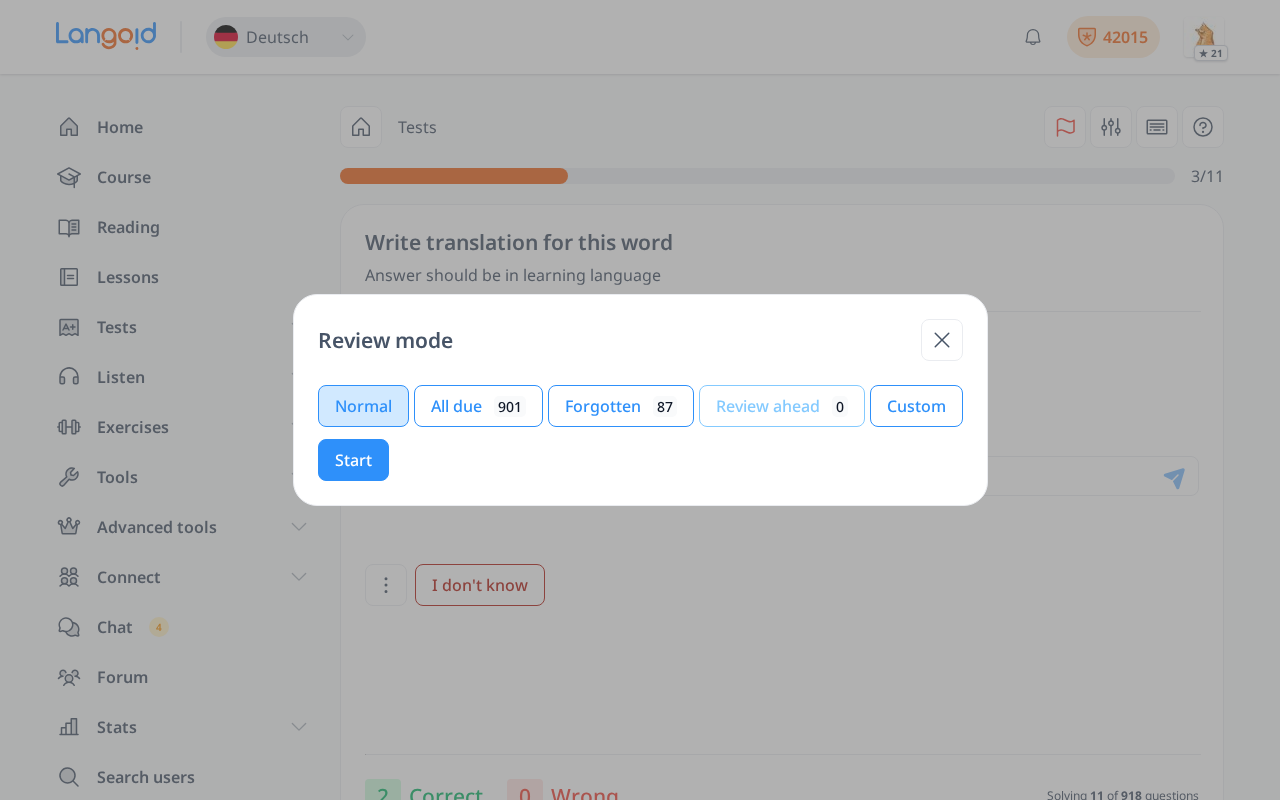
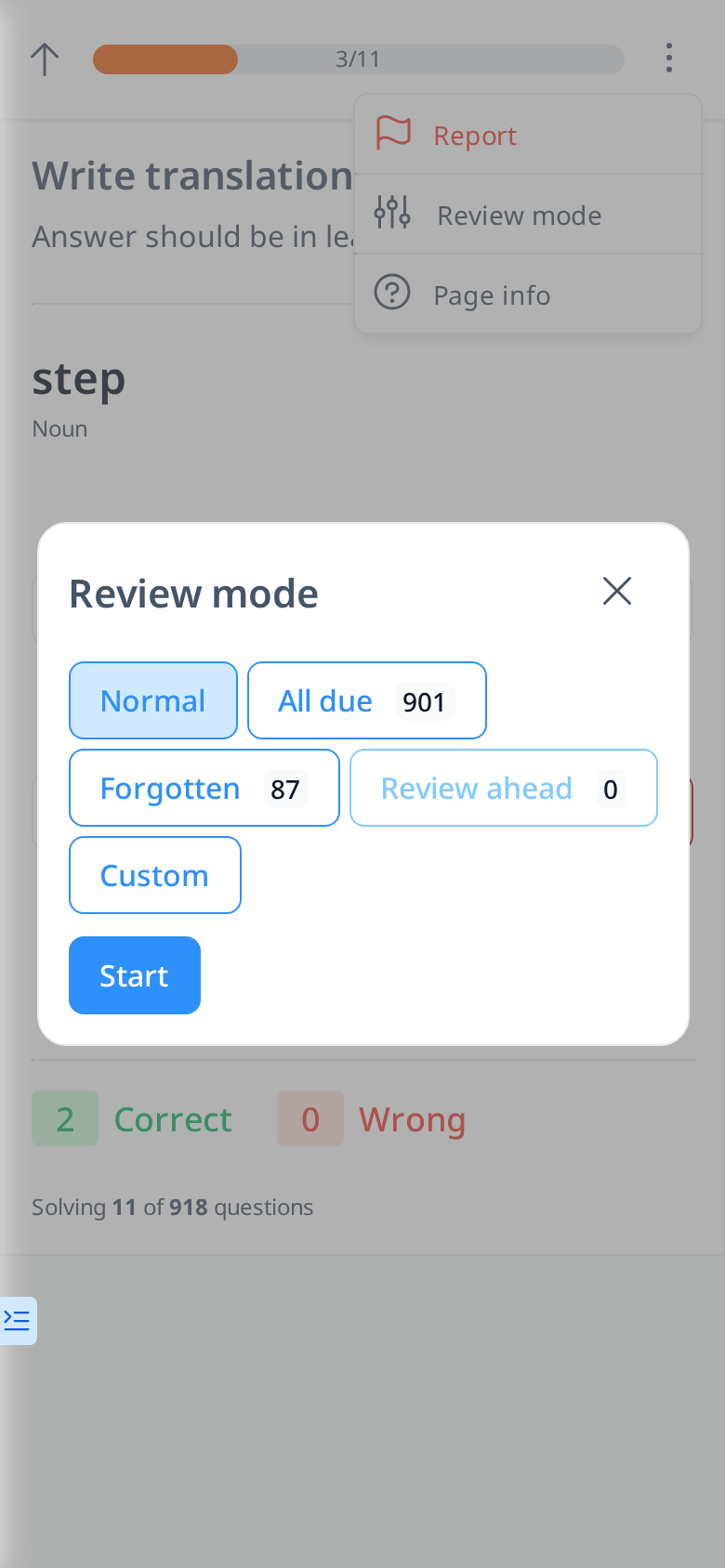
The Review mode button at the top of a test lets you choose what to review:
- Normal - the default: words that are due, plus new words when there are few due ones.
- All due - only the words that are due today.
- Forgotten - words you answered wrongly before.
- Review ahead - words that will be due in the next days (you choose how many days and whether to start with the nearest or the hardest ones).
- Custom - combine due, upcoming, forgotten and new words and choose how many cards you want.
Tests Structure
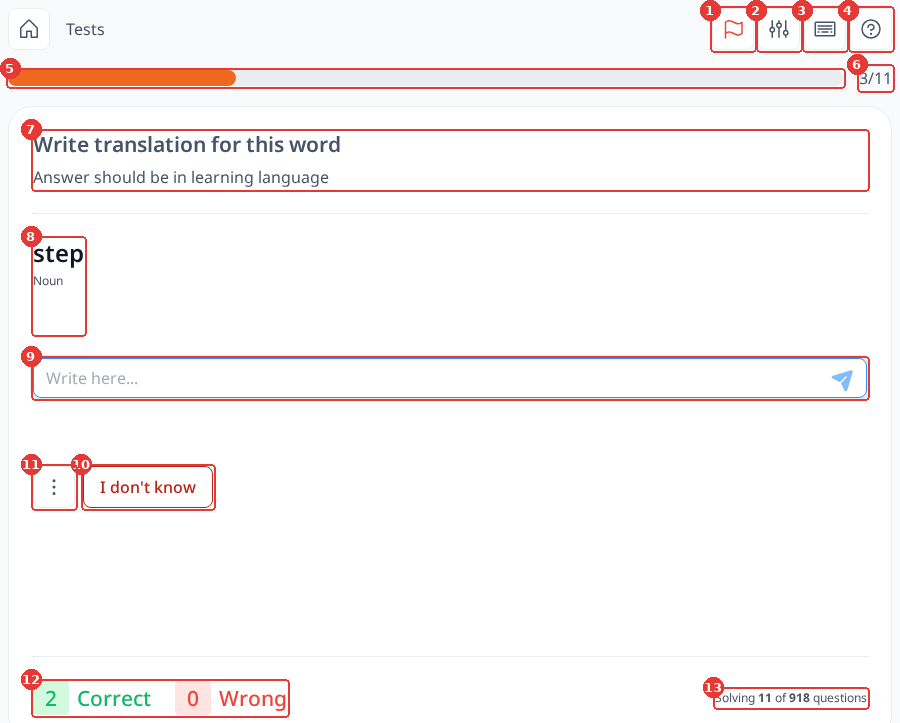
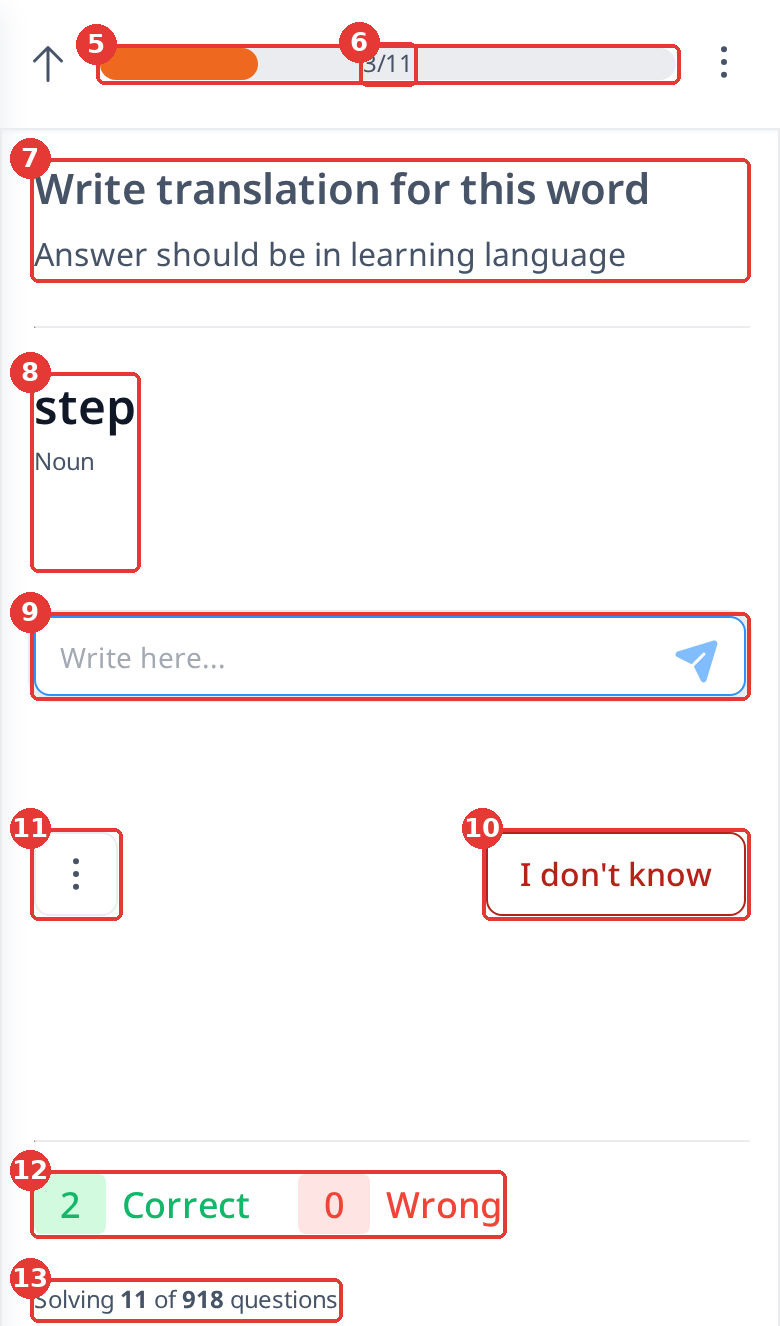
A word test question has these parts (on a phone, the first four buttons are in the ⋮ menu in the upper right corner):
- Report - report the question if it has a mistake, a wrong translation or bad audio.
- Review mode - choose which words you want to review (see below).
- Keyboard shortcuts - shows the shortcuts you can use in tests (computer only, you can also press ?).
- Page info - opens the explanation of this page.
- Progress bar - how much of the current batch you’ve done.
- Question number - the question you’re answering and the number of questions in the current batch.
- Test instruction - what you need to do, and in which language your answer should be.
- Question - the word you need to translate, with its part of speech below it.
- Answer field - type your answer here and send it with the arrow button or the Enter key.
- I don’t know - shows the correct answer right away.
- Additional options (⋮):
- I know this - marks the word as known.
- Hide forever - the word won’t appear in your tests again. Useful when you added a word by mistake.
- Days to hide [1, 7, 30] - hides the word for 1, 7 or 30 days.
- Correct and wrong answers - how many questions you answered correctly and wrongly in this session.
- Solving X of Y questions - the question you’re on and the total number of questions you have right now.